

blog
Build a review-ready Word executive report from PowerShell

I have generated plenty of Word files that were technically correct and still awkward to use. They contained the data, but a manager could not jump to a finding, an auditor could not follow the evidence, and the approval still happened somewhere else.
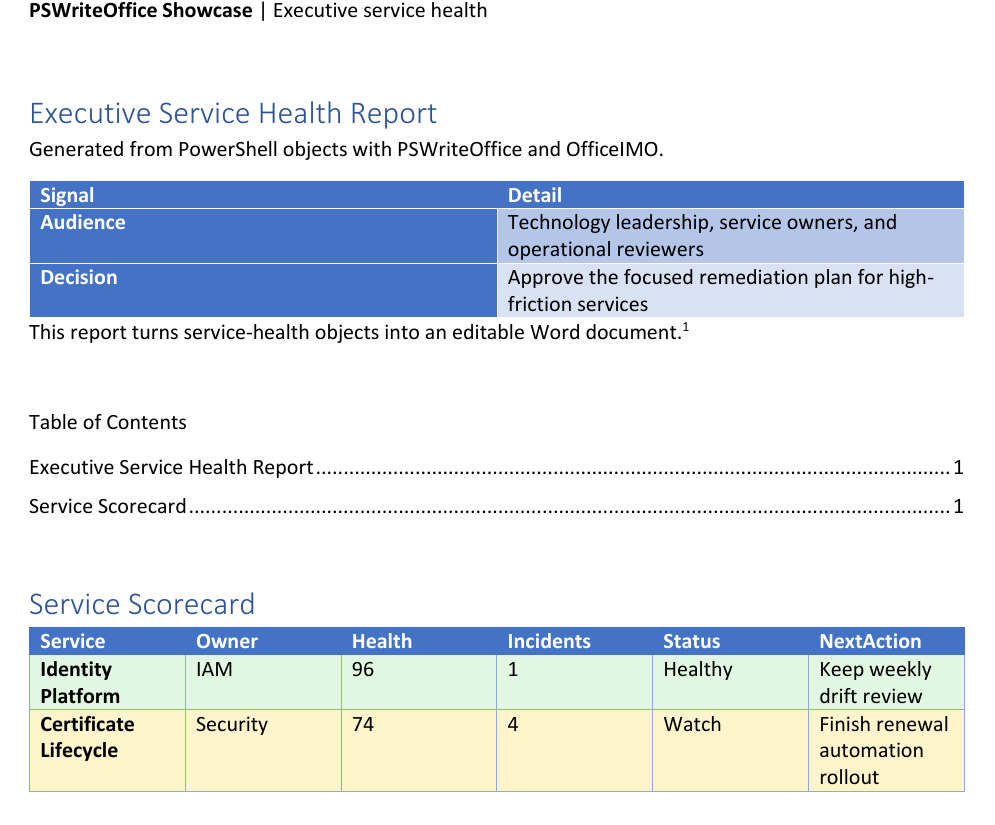
This article builds the kind of report I actually want to hand over: an editable .docx with a clear opening page, navigation, a scorecard, a chart, review fields, and enough metadata to explain where it came from. The compact example uses service-health data with owners, incidents, trends, and next actions. The full showcase adds more services, recommended actions, and watermarking.
Before you start
Use PowerShell 7 and install the current public modules used for this article:
Install-Module PSWriteOffice -Scope CurrentUser -Force
Import-Module PSWriteOffice
Run the examples from a folder where you can write the generated files. Replace the sample service data after the first successful run.
What the example builds
The full showcase script creates a larger report than the compact example below. It includes:
- a native opening panel built from Word paragraphs and tables
- header and footer content
- built-in and custom document properties
- a Word table of contents
- multiple heading levels
- a conditional service scorecard table
- a line chart for availability and incident trends
- a recommended-actions table
- bookmark and hyperlink navigation
- approval content controls
- watermarking
- one footnote and one endnote
- a read-back summary proving the document shape after generation
The input is ordinary PowerShell data, so the same report can sit on top of monitoring, inventory, compliance, or service-management scripts you already have.
$services = @(
    [pscustomobject]@{
        Service = 'Identity Platform'
        Owner = 'IAM'
        Health = 96
        Incidents = 1
        Status = 'Healthy'
        NextAction = 'Keep weekly drift review'
    }
    [pscustomobject]@{
        Service = 'Certificate Lifecycle'
        Owner = 'Security'
        Health = 74
        Incidents = 4
        Status = 'Watch'
        NextAction = 'Finish renewal automation rollout'
    }
)

$trend = @(
    [pscustomobject]@{ Month = 'Jan'; Availability = 99.20; Incidents = 8 }
    [pscustomobject]@{ Month = 'Feb'; Availability = 99.34; Incidents = 7 }
    [pscustomobject]@{ Month = 'Mar'; Availability = 99.55; Incidents = 6 }
    [pscustomobject]@{ Month = 'Apr'; Availability = 99.61; Incidents = 5 }
    [pscustomobject]@{ Month = 'May'; Availability = 99.73; Incidents = 4 }
    [pscustomobject]@{ Month = 'Jun'; Availability = 99.82; Incidents = 3 }
)

$path = '.\Executive-Service-Health.docx'
Writing the document
I write the document in the same order a reader sees it: sections, headings, paragraphs, tables, charts, and review controls. The first page uses native Word content, without System.Drawing, desktop Word automation, or a pre-rendered image.
$executiveSignals = @(
    [pscustomobject]@{
        Signal = 'Audience'
        Detail = 'Technology leadership, service owners, and operational reviewers'
    }
    [pscustomobject]@{
        Signal = 'Decision'
        Detail = 'Approve the focused remediation plan for high-friction services'
    }
)

$document = New-OfficeWord -Path $path -NoSave {
    WordSection {
        WordHeader {
            WordParagraph {
                WordBold 'PSWriteOffice Showcase'
                WordText ' | Executive service health'
            }
        }

        Set-OfficeWordDocumentProperty -Name Title -Value 'Executive Service Health Report'
        Set-OfficeWordDocumentProperty -Name ShowcaseProduct -Value 'Word' -Custom

        WordParagraph -Text 'Executive Service Health Report' -Style Heading1
        WordParagraph 'Generated from PowerShell objects with PSWriteOffice and OfficeIMO.'
        WordTable -InputObject $executiveSignals -Style GridTable5DarkAccent1 -Layout AutoFitToWindow

        WordParagraph {
            WordText 'This report turns service-health objects into an editable Word document.'
            WordFootnote 'The sample uses synthetic data generated entirely in PowerShell.'
        }

        WordBookmark -Name 'ExecutiveSummary'
        WordTableOfContents -Style Template1
    }
}
-NoSave returns the live document so the later blocks can keep adding content. The approval section saves and closes it once. The result remains a normal Word document that people can edit, review, and reuse.
Making tables useful
The scorecard should help during a meeting, not merely prove that PowerShell exported some objects. Status-based formatting lets a reader find the risky rows before reading every value.
WordParagraph -Document $document -Text 'Service Scorecard' -Style Heading1

WordTable -Document $document -InputObject $services -Style GridTable4Accent1 -Layout AutoFitToWindow {
    WordTableCondition -FilterScript { $_.Status -eq 'Risk' } -BackgroundColor '#fde2e2'
    WordTableCondition -FilterScript { $_.Status -eq 'Watch' } -BackgroundColor '#fff4cc'
    WordTableCondition -FilterScript { $_.Status -eq 'Healthy' } -BackgroundColor '#e2f7e1'
}
At this point the table starts behaving like part of a report rather than a pasted data dump.
Charts, notes, and approvals
Next I add a line chart, approval controls, reviewer notes, and links back into the document.
WordChart -Document $document `
    -Type Line `
    -Data $trend `
    -CategoryProperty Month `
    -SeriesProperty Incidents `
    -Title 'Monthly incident trend' `
    -Legend `
    -LegendPosition Bottom `
    -XAxisTitle 'Month' `
    -YAxisTitle 'Incidents' `
    -FitToPageWidth

WordParagraph -Document $document {
    WordHyperlink -Text 'Jump back to Executive Summary' -Anchor 'ExecutiveSummary' -Styled
}

WordParagraph -Document $document {
    WordText 'Risk labels combine incidents, owner feedback, and observed trend.'
    WordEndnote 'The scoring model is intentionally simple for the showcase.'
}
The approval fields are Word content controls, which means the reviewer can finish them in Word without touching the script:
WordParagraph -Document $document {
    WordText 'Approved for publication: '
    WordCheckBox -Alias 'ApprovedForPublication' -Tag 'approval-publish'
}
WordParagraph -Document $document {
    WordText 'Next review date: '
    WordDatePicker -Date (Get-Date '2026-06-15') -Alias 'NextReviewDate'
}
WordParagraph -Document $document {
    WordText 'Review status: '
    WordDropDownList -Items 'Draft','Ready for review','Approved' -Alias 'ReviewStatus'
}

Update-OfficeWordTableOfContents -Document $document
$document | Close-OfficeWord -Save
Reading and validating the output
After saving, I reopen the document and read its structure back. This catches a missing chart or approval field before the report is sent and gives CI something more useful to check than "the file exists."
$document = Get-OfficeWord -Path $path -ReadOnly
$reportShape = [pscustomobject]@{
    Paragraphs      = $document.Paragraphs.Count
    Tables          = $document.Tables.Count
    Charts          = $document.Charts.Count
    ContentControls = $document.StructuredDocumentTags.Count
}
$document | Close-OfficeWord

$reportShape
The update command tells Word to refresh the table of contents when the document opens. Other readers may continue showing the cached placeholder, so open the final report in Word and update the TOC before distribution. The structural check can fail the build if the report loses its chart, content controls, or core tables:
if ($reportShape.Charts -lt 1) {
    throw 'Expected at least one chart in the executive report.'
}

if ($reportShape.Tables -lt 2) {
    throw 'Expected opening and scorecard tables.'
}
Performance and scale
For Word generation, I get more from choosing the right document shape than from micro-optimizing one paragraph:
- Build data as PowerShell objects first, then pass arrays into
WordTableandWordChart. - Keep expensive read-back validation focused on structure, counts, and key fields.
- Use tables and styles instead of thousands of individually formatted runs.
- Generate without Microsoft Word installed, which keeps CI and server usage realistic.
- Save once at the end of the composition block instead of opening and closing the file repeatedly.
For a large report, I split the document into predictable sections such as summary, findings, evidence, action plan, and appendix. It is easier to generate and much easier to review.
Where I use the same pattern
Service health is only the sample data. The same layout works for:
- Compliance attestation with owner sign-off controls.
- Change advisory reports with risk tables, bookmarks, and approval date pickers.
- Active Directory or Microsoft 365 assessments with findings, evidence links, and remediation tables.
- Monthly operations packs with trend charts, generated TOC, and hidden reviewer notes.
- Customer-facing delivery reports where metadata and internal navigation matter.
The part I care about
The report remains useful after the script finishes. People can navigate it, edit it, add an approval, follow the evidence, and save the reviewed copy as a normal Word document.
OfficeIMO.Word provides the Open XML engine, while PSWriteOffice exposes the authoring workflow to PowerShell. You can pass objects into a composition block as shown here, or keep a live document or paragraph target when loops and conditions make that easier to read.