# Formatting and minifying resources (HTML, CSS, JavaScript) with PowerShell
When you work with HTML, CSS, and JavaScript, you often meet three versions on how those are stored in files – minified, formatted, somewhere in the middle (usually a total mess). I have all three versions in my PSWriteHTML module. Some are minified 3rd party resources, some are generated by my PowerShell commands (and are a total mess when it comes to formatting), and finally, some are formatted resources by using built-in VSCode features. In whatever form they are, they generally have no impact on how browsers display them. Browsers will read them in any kind and not care for how they look.
blog
11 Aug 2019 en
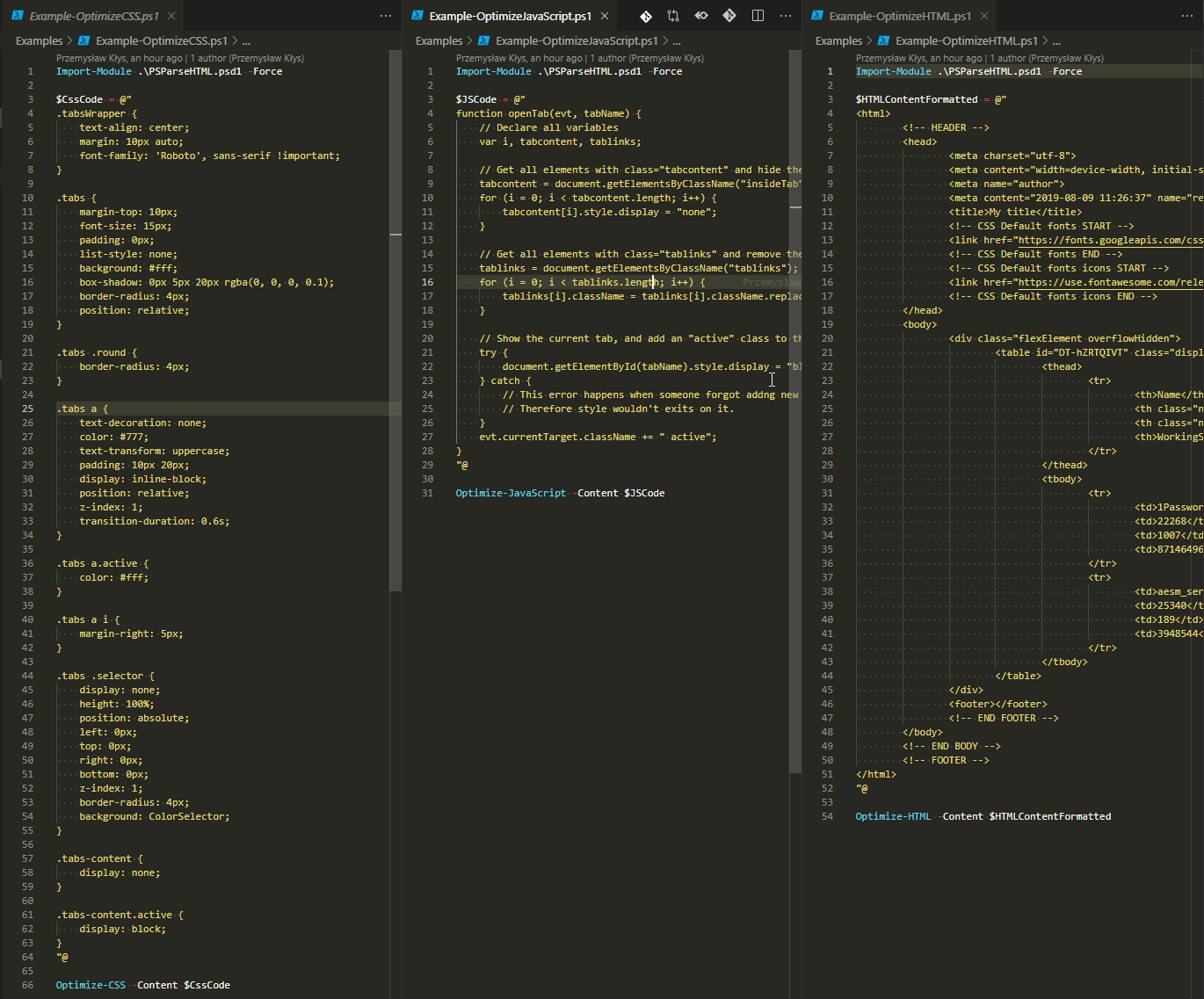
When you work with **HTML**, **CSS**, and **JavaScript**, you often meet three versions on how those are stored in files – minified, formatted, somewhere in the middle (usually a total mess). I have all three versions in my [PSWriteHTML](https://github.com/EvotecIT/PSWriteHTML) module. Some are minified 3rd party resources, some are generated by my **PowerShell** commands (and are a total mess when it comes to formatting), and finally, some are formatted resources by using built-in VSCode features. In whatever form they are, they generally have no impact on how browsers display them. Browsers will read them in any kind and not care for how they look.
### 💡 Formatting and Optimizations
While formatting doesn't matter for browsers, it's much easier to debug, change **HTML**, **CSS** or **JavaScript** if it's properly formatted code. Trying to understand what happens in Minified JS script like the one below is far from optimal.
```javascript
(function(){function main(){var tabButtons = [].slice.call(document.querySelectorAll("ul.tab-nav li a.buttonTab"));tabButtons.map(function(button){button.addEventListener("click",function(){document .querySelector("li a.active.buttonTab") .classList.remove("active");button.classList.add("active");document .querySelector(".tab-pane.active") .classList.remove("active");document .querySelector(button.getAttribute("href")) .classList.add("active")})})}if(document.readyState!== "loading"){main()}else{document.addEventListener("DOMContentLoaded",main)}})();
```
What if this could be formatted as code below?
```javascript
(function() {
function main() {
var tabButtons = [].slice.call(document.querySelectorAll("ul.tab-nav li a.buttonTab"));
tabButtons.map(function(button) {
button.addEventListener("click", function() {
document.querySelector("li a.active.buttonTab").classList.remove("active");
button.classList.add("active");
document.querySelector(".tab-pane.active").classList.remove("active");
document.querySelector(button.getAttribute("href")).classList.add("active")
})
})
}
if (document.readyState !== "loading") {
main()
} else {
document.addEventListener("DOMContentLoaded", main)
}
})();
```
Much more beautiful, more comfortable to read and you can do some changes to it. Same goes for **HTML**. Often my **PSWriteHTML** module generates something like this:
```html
My title
| Name | Id | HandleCount | WorkingSet |
| --- | --- | --- | --- |
| 1Password | 22268 | 1007 | 87146496 |
| aesm_service | 25340 | 189 | 3948544 |
```
Which is hard to understand and modify. Let's check the formatted version:
```powershell
My title
| Name | Id | HandleCount | WorkingSet |
| --- | --- | --- | --- |
| 1Password | 22268 | 1007 | 87146496 |
| aesm_service | 25340 | 189 | 3948544 |
```
Of course, you can do that formatting with **VSCode**, or you can use some online converter to do it for you, but I thought how hard it would be to do it in **PowerShell**?
### 💡 How to Optimize (Minify) or Format HTML, CSS and JavaScript with PowerShell
Turns out with some help of **NET** libraries you can Format **HTML**, **JavaScript**, and **CSS**. You can also reverse that process and enable minification of those resources. Say hello to [**PSParseHTML**](https://github.com/EvotecIT/PSParseHTML). This little **PowerShell** module can do two things (for now).
- 📝 Format HTML, JavaScript and CSS
- 📝 Optimize (Minify) HTML, JavaScript and CSS
It can do so thru six different functions
- 📝 Optimize-CSS
- 📝 Optimize-HTML
- 📝 Optimize-JavaScript
- 📝 Format-CSS
- 📝 Format-HTML
- 📝 Format-JavaScript
They expect input as a string or from a file. They output to **string** or to **file**. I'm going to focus only on the input and output to string, but the idea is generally the same.
### 💡 Formatting HTML with PowerShell
Let's see how this works when trying to format (prettify) **HTML**
```powershell
$HTMLContent = 'My title
| Name | Id | HandleCount | WorkingSet |
| --- | --- | --- | --- |
| 1Password | 22268 | 1007 | 87146496 |
| aesm_service | 25340 | 189 | 3948544 |
'
Format-HTML -Content $HTMLContent
```
Output
```powershell
My title
| Name | Id | HandleCount | WorkingSet |
| --- | --- | --- | --- |
| 1Password | 22268 | 1007 | 87146496 |
| aesm_service | 25340 | 189 | 3948544 |
```
### 💡 Formatting CSS with PowerShell
Let's see how this works when trying to format (prettify) **CSS**
```powershell
$CSS = '.tabsWrapper{text-align:center;margin:10px auto;font-family:"Roboto", sans-serif!important}.tabs{margin-top:10px;font-size:15px;padding:0;list-style:none;background:rgba(255, 255, 255, 1);box-shadow:0 5px 20px rgba(0, 0, 0, 0.1);border-radius:4px;position:relative}.tabs .round{border-radius:4px}.tabs a{text-decoration:none;color:rgba(119, 119, 119, 1);text-transform:uppercase;padding:10px 20px;display:inline-block;position:relative;z-index:1;transition-duration:0.6s}.tabs a.active{color:rgba(255, 255, 255, 1)}.tabs a i{margin-right:5px}.tabs .selector{display:none;height:100%;position:absolute;left:0;top:0;right:0;bottom:0;z-index:1;border-radius:4px}.tabs-content{display:none}.tabs-content.active{display:block}'
Format-CSS -Content $CSS
```
Output
```powershell
.tabsWrapper { text-align: center; margin: 10px auto; font-family: "Roboto", sans-serif !important }
.tabs { margin-top: 10px; font-size: 15px; padding: 0; list-style: none; background: rgba(255, 255, 255, 1); box-shadow: 0 5px 20px rgba(0, 0, 0, 0.1); border-radius: 4px; position: relative }
.tabs .round { border-radius: 4px }
.tabs a { text-decoration: none; color: rgba(119, 119, 119, 1); text-transform: uppercase; padding: 10px 20px; display: inline-block; position: relative; z-index: 1; transition-duration: 0.6s }
.tabs a.active { color: rgba(255, 255, 255, 1) }
.tabs a i { margin-right: 5px }
.tabs .selector { display: none; height: 100%; position: absolute; left: 0; top: 0; right: 0; bottom: 0; z-index: 1; border-radius: 4px }
.tabs-content { display: none }
.tabs-content.active { display: block }
```
### 💡 Formatting JavaScript with PowerShell
Let's see how this works when trying to format (prettify) **JavaScript**
```powershell
$JSContent = '(function(){function main(){var tabButtons = [].slice.call(document.querySelectorAll("ul.tab-nav li a.buttonTab"));tabButtons.map(function(button){button.addEventListener("click",function(){document .querySelector("li a.active.buttonTab") .classList.remove("active");button.classList.add("active");document .querySelector(".tab-pane.active") .classList.remove("active");document .querySelector(button.getAttribute("href")) .classList.add("active")})})}if(document.readyState!== "loading"){main()}else{document.addEventListener("DOMContentLoaded",main)}})();'
Format-JavaScript -Content $JSContent
```
Output
```powershell
(function() {
function main() {
var tabButtons = [].slice.call(document.querySelectorAll("ul.tab-nav li a.buttonTab"));
tabButtons.map(function(button) {
button.addEventListener("click", function() {
document.querySelector("li a.active.buttonTab").classList.remove("active");
button.classList.add("active");
document.querySelector(".tab-pane.active").classList.remove("active");
document.querySelector(button.getAttribute("href")).classList.add("active")
})
})
}
if (document.readyState !== "loading") {
main()
} else {
document.addEventListener("DOMContentLoaded", main)
}
})();
```
### 💡 Optimizing (Minification) HTML with PowerShell
Let's see how this works when trying to minify **HTML**
```powershell
$HTMLContentFormatted = @"
My title
| Name | Id | HandleCount | WorkingSet |
| --- | --- | --- | --- |
| 1Password | 22268 | 1007 | 87146496 |
| aesm_service | 25340 | 189 | 3948544 |
"@
Optimize-HTML -Content $HTMLContentFormatted
```
Output
```html
My title
| Name | Id | HandleCount | WorkingSet |
| --- | --- | --- | --- |
| 1Password | 22268 | 1007 | 87146496 |
| aesm_service | 25340 | 189 | 3948544 |
```
Good enough right?
### 💡 Optimizing (Minification) JavaScript with PowerShell
Let's see how this works when trying to minify **JavaScript (JS)**
```powershell
$JSCode = @"
function openTab(evt, tabName) {
// Declare all variables
var i, tabcontent, tablinks;
// Get all elements with class="tabcontent" and hide them
tabcontent = document.getElementsByClassName("insideTab");
for (i = 0; i
My title
| Name | Id | HandleCount | WorkingSet |
| --- | --- | --- | --- |
| 1Password | 22268 | 1007 | 87146496 |
| aesm_service | 25340 | 189 | 3948544 |
"@
Convert-HTMLToText -Content $HTMLContentFormatted
```
Output
```powershell
Name Id HandleCount WorkingSet 1Password 22268 1007 87146496 aesm_service 25340 189 3948544
```
It's not super fancy, but it works. Probably could be replaced with some fancy Regex.
### 💡 Current Limitations
What you should know when using this module is that for now when you format **HTML**, it doesn't format inline **CSS** and **JavaScript**. It means while you get prettified **HTML** with tabs and all, but **CSS** and **JavaScript** will stay in the same state. I will try to find a way to optimize this either by using a different library or by doing a custom reading and doing some PowerShell magic. We'll see.
### 💡 Using PSParseHTML as PowerShell Module
For easy use of **PSParseHTML**, you can install it from **PowerShellGallery**. Installing it is as easy as it gets.
```powershell
Install-Module PSParseHTML -AllowClobber -Force
```
Code as always is stored on [GitHub](https://github.com/EvotecIT/PSParseHTML) and is free to use and take. After you install it, all commands become available without you having to do anything. Of course, if you prefer to get sources from [GitHub](https://github.com/EvotecIT/PSParseHTML) be my guest!
### 💡 Future of PSParseHTML
I may add few more things to this module (not yet sure what) and I do intend to integrate it with [**PSWriteHTML**](https://github.com/EvotecIT/PSWriteHTML) to either prettify or minify output depending on users needs. Not yet sure at what stage, which features but you can expect it to find it's way in there in one way or another. For now, you can use this in your projects as per your need.
## Related Projects
Projects that align with this post's tags, categories, and content.
[All projects](/projects/)
Matching projects...
[Back to Blog](/blog)
## Related posts
- [Solving typo problems with Fuzzy Search in PSWriteHTML](/blog/solving-typo-problems-with-fuzzy-search-in-pswritehtml/)
- [Advanced HTML reporting using PowerShell](/blog/advanced-html-reporting-using-powershell/)
- [Dashimo (PSWriteHTML) – Charting, Icons and few other changes](/blog/dashimo-pswritehtml-charting-icons-and-few-other-changes/)