

blog
Sending email as an alias (proxy address) with Office 365
For a long time, receiving mail on an alias in Exchange Online was easy, but sending from that alias was awkward. People ended up using shared mailboxes, extra mailboxes, or other workarounds just to make the From address look right.
Exchange Online now supports sending from an alias, but it still requires a tenant-level setting before users can rely on it.
Enable send from alias in Exchange Online
To enable it for the organization, connect to Exchange Online PowerShell and turn on the setting:
Install-Module -Name ExchangeOnlineManagement -Force
Once installed, connect to your Office 365 tenant using Global Admin credentials.
Connect-ExchangeOnline
Verify the status of the Send From Alias option to make sure you know the state of it before applying any change
Get-OrganizationConfig | Format-List SendFromAliasEnabled
Finally, enable Send From Alias functionality for the whole tenant!
Set-OrganizationConfig -SendFromAliasEnabled $true
All that's left is some waiting time as the change propagates thru Exchange Online.
How users send from the alias
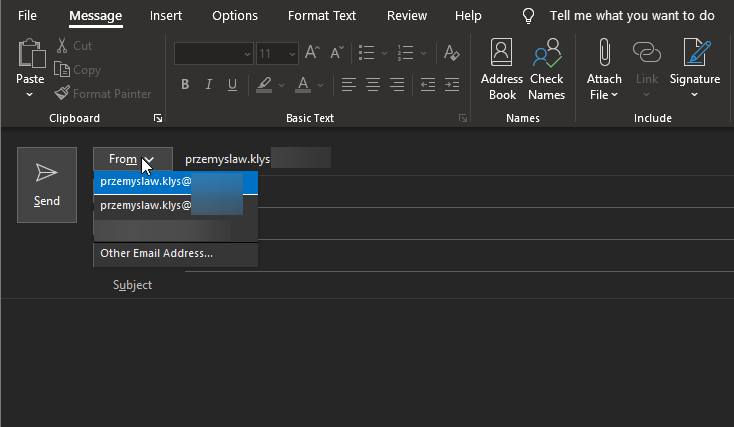
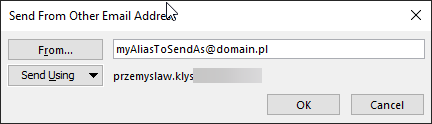
Once the tenant setting is enabled, users can open a new message in Outlook, expose the From field, and choose Other Email Address if the alias is not already listed.
Then, choose From, and from the list of all your emails, choose Other Email Address…
Current note
As of April 22, 2026, Microsoft still documents the SendFromAliasEnabled organization setting for Exchange PowerShell, and Microsoft support guidance still points administrators to the Exchange admin center or Set-OrganizationConfig -SendFromAliasEnabled $true to turn the feature on.
One practical detail worth remembering is that enabling the tenant feature does not instantly rewrite every Outlook experience. If the alias does not appear right away, let the setting propagate and then test by entering the alias manually in the From field before assuming the feature failed.