

blog
Set service recovery options in PowerShell

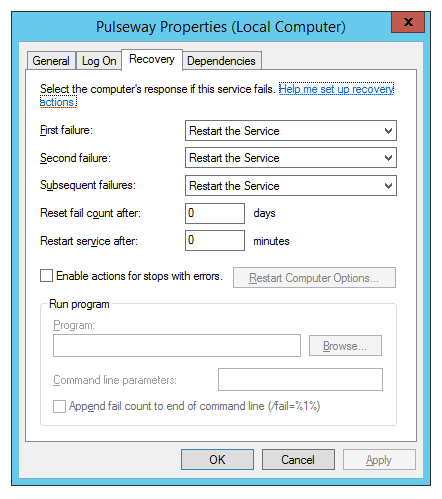
One of our administrators noticed that some Pulseway services occasionally needed to be started manually after Windows updates. The service would end up in a bad state, the machine would come back, and monitoring would stay down until someone noticed.
That is exactly the kind of problem service recovery options are meant to reduce.
Why recovery actions matter
For services that are business-critical but occasionally fragile, automatic recovery can save a lot of pointless manual intervention. Restarting the service on the first, second, or later failure is often enough to get things back into a healthy state without waiting for an admin to log in.
The practical limitation
At the time, the easiest way to configure these settings from a script was not a native PowerShell cmdlet. The practical route was to call sc.exe from PowerShell and pass the failure-action settings that Windows Services understands.
The script below configures actions for:
- first failure
- second failure
- subsequent failures
function Set-ServiceRecovery {
    [Alias('Set-Recovery')]
    param (
        [Parameter(Mandatory = $true)]
        [string] $ServiceDisplayName,

        [Parameter(Mandatory = $true)]
        [string] $Server,

        [string] $Action1 = "restart",
        [int] $Time1 = 30000,
        [string] $Action2 = "restart",
        [int] $Time2 = 30000,
        [string] $ActionLast = "restart",
        [int] $TimeLast = 30000,
        [int] $ResetCounter = 4000
    )

    $ServerPath = "\\" + $Server
    $Services = Get-CimInstance -ClassName Win32_Service -ComputerName $Server |
        Where-Object { $_.DisplayName -eq $ServiceDisplayName }
    $Action = $Action1 + "/" + $Time1 + "/" + $Action2 + "/" + $Time2 + "/" + $ActionLast + "/" + $TimeLast

    foreach ($Service in $Services) {
        $null = sc.exe $ServerPath failure $($Service.Name) actions= $Action reset= $ResetCounter
    }
}

Set-ServiceRecovery -ServiceDisplayName "Pulseway" -Server "MAIL1"
One detail worth noticing
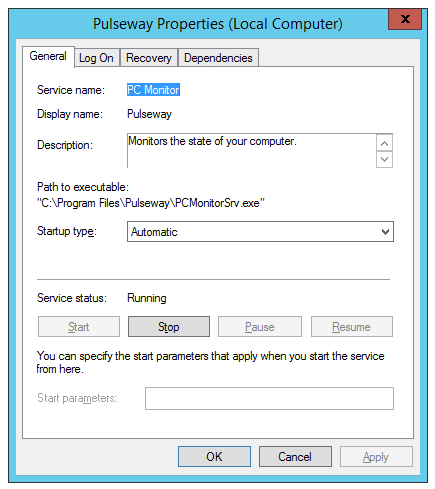
This script searches by display name, not by service name.
That was intentional here because some products, including Pulseway back when it was also known as PC Monitor, could be a bit inconsistent in how admins referred to the service. But if you adapt this for your own environment, exact identifiers are safer than broad pattern matching.
Practical advice
After changing recovery options, verify the result and make sure you are applying the settings to the intended service on the intended server. Recovery actions are easy to automate, but they are also easy to point at the wrong target if your matching logic is too loose.
For flaky monitoring agents, backup agents, or line-of-business services, this kind of small change can make the environment feel much more self-healing.