

blog
Sync any folder in Windows to OneDrive

OneDrive is great piece of software but at the time of writing it misses some of the features that competitors (in particular Google Drive) like linking any folder to OneDrive. You can only synchronize data from OneDrive to your user folder (or wherever you define it). But you can't tell OneDrive to synchronize C:\Support, D:\MyFolder, C:\MySuperHiddenFolder.
Well at least not natively… unless you use the trick below.
✅ Solution
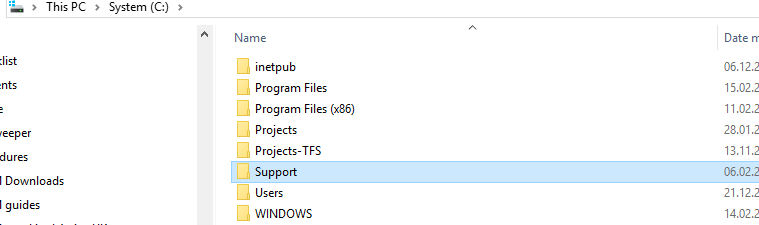
The way to solve is by using neat feature called Symbolic Links. Symbolic links are basically advanced shortcuts. Create a symbolic link to an individual file or folder, and that link will appear to be the same as the file or folder to Windows—even though it’s just a link pointing at the file or folder. Since I wanted to synchronize C:\Support to OneDrive, all I had to do was…
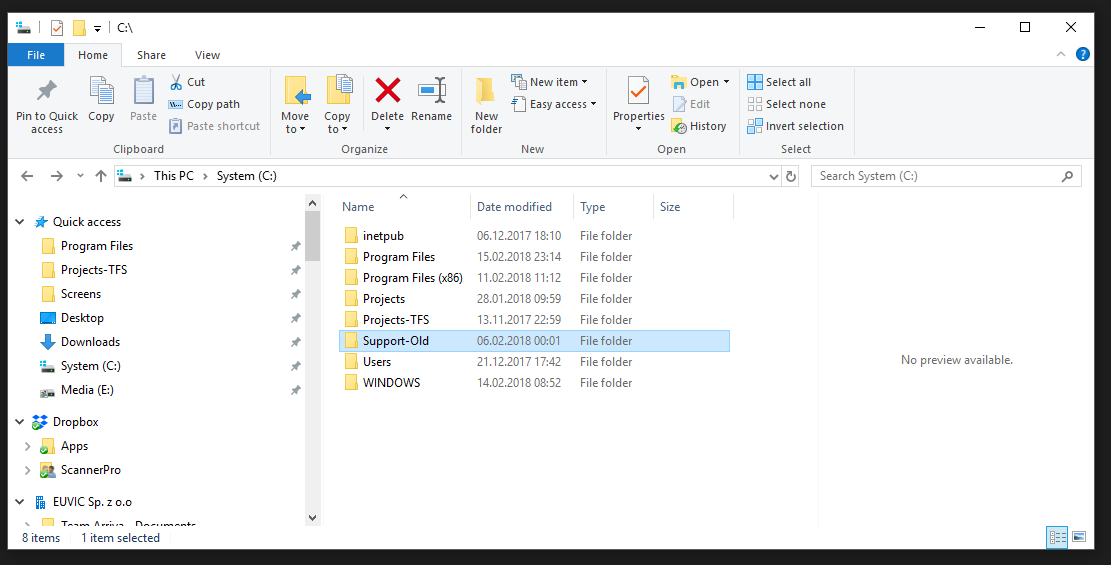
- Rename C:\Support to C:\Support-Old
- Open CMD as **Administrator **and use mklink application that's brought to you by Microsoft as hidden gem
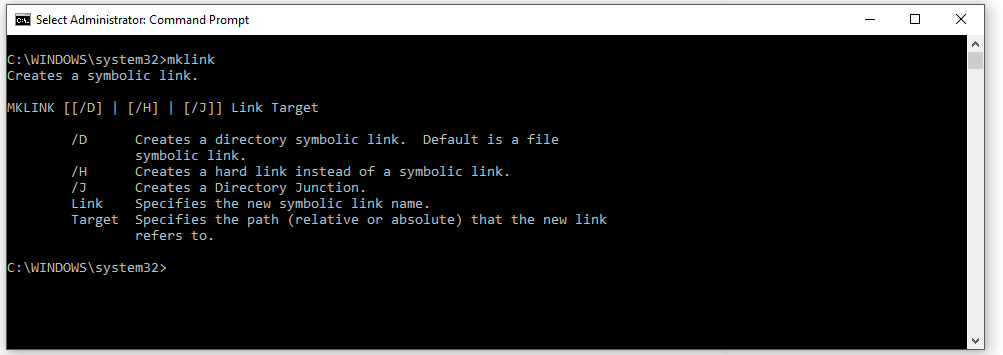
- Run following command – where Targetfolder shouldn't exists (keep in mind REM below means it's a comment). So just one simple command is necessary
REM mklink /J
mklink /J "C:\Support" "C:\Users\pklys\OneDrive - Evotec\Support"

- Notice how the folder has special arrow next to it. It means it's Hard Linked now.
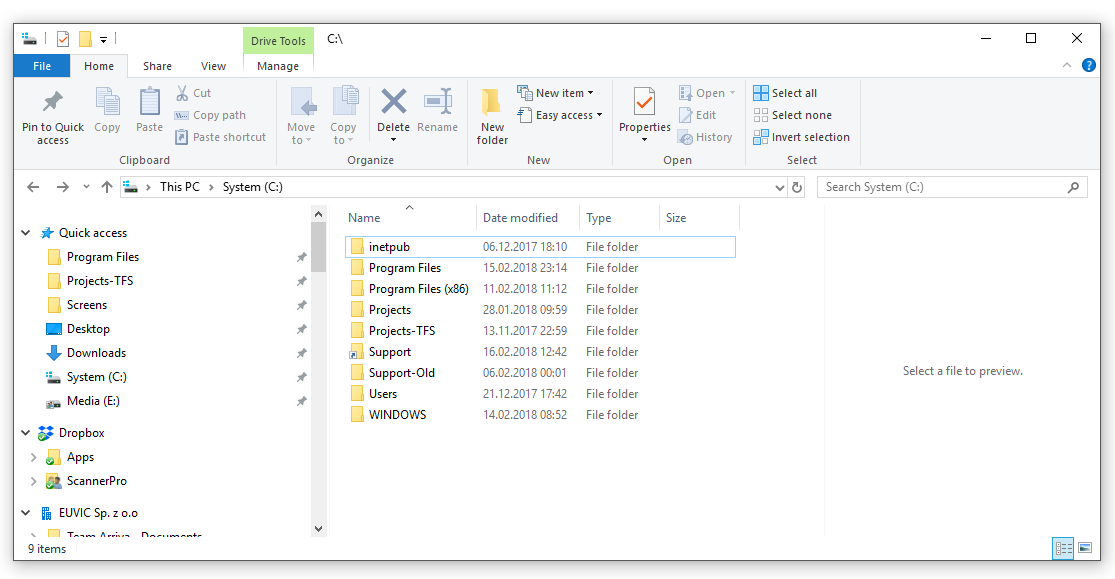
- Now anything you create in C:\Support (or folder of your choice for that matter) folder or on your OneDrive will get synchronized both ways (technically it's same file – no synchronization occurs). Isn't that great?
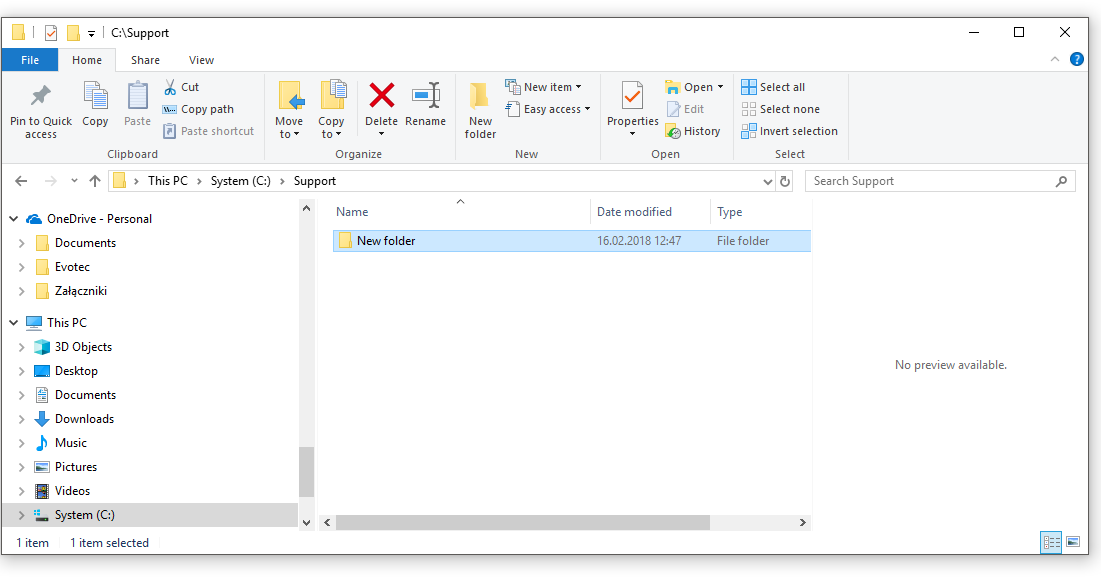
- Gets hardlinked to OneDrive, and at same time synchronized by OneDrive to Cloud!
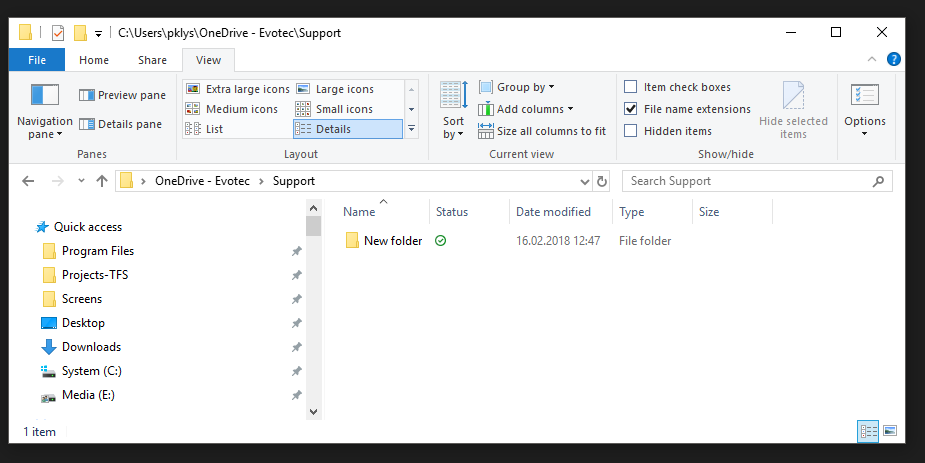
And best of all it doesn't take double space on your drive. Enjoy!
PS. To get rid of a symbolic link, you can simply delete it like you would any other file or directory. Just be careful to delete the link itself rather than the file or directory it’s linking to. In my case this would be deleting C:\Support rather then the folder on OneDrive.