

blog
Juniper – Web interface is not responding

Sometimes J-Web stops responding even though the firewall itself is still alive and reachable over SSH or the console. In that situation the tempting fix is a full reboot, but that is usually the slowest and most disruptive option.
If the underlying routing or firewalling functions are still healthy, restarting the web management process is often enough to bring the GUI back.
Quick recovery
If you still have access through SSH, Telnet, or the physical console, run:
root@JuniperSRX2202% cli
root@JuniperSRX2202> edit
Entering configuration mode
root@JuniperSRX2202# run restart web-management
Web management gatekeeper process started, pid 2742
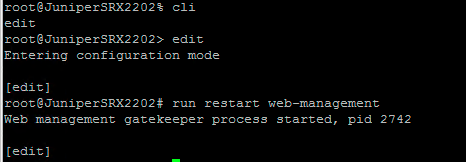
The important part is the last command:
run restart web-management
That restarts the web management process without forcing a full device restart.
Why this is better than rebooting
- It is much faster than restarting the whole firewall.
- It avoids interrupting traffic when the data plane is still healthy.
- It is a good first response when only the GUI is affected.
What to verify afterward
Once J-Web comes back, it is worth checking:
- whether the issue happens repeatedly
- what Junos version the device is running
- whether this started after a software upgrade
- whether the device is under memory or CPU pressure
If the problem returns frequently, treat restart web-management as a recovery step, not the final fix.
Current note
Juniper still documents restart web-management as a valid command to restart the Web management process on supported Junos platforms. This post originally came from an older SRX220H2 running 12.3X48-D30.7, but the recovery idea itself is still useful today: if the GUI dies and CLI access survives, restart the web-management process before reaching for a full reboot.
Tested in the original case on: Juniper SRX220H2