# Getting Azure Health by parsing HTML using PSParseHTML
Some time ago I’ve wrote PowerShell way to get all information about Office 365 Service Health, and if you were thinking that I would try the same concept for Azure Services you were right. However, I failed. This is because Office 365 Health can be gathered using Microsoft Graph API, and Azure Health information, as far as I know, is not available in the form I wanted it. Azure Status is available as part of Azure Status website. Contrary to Office 365 health you don’t have to login to your Office 365 tenant to read it.
blog
08 Dec 2019 fr
[Voir les images (15)](#pf-content-image-1-0)
With today's blog I would like to cover two topics that you may find useful in your PowerShell journey. Those are:
- 🌐 How to get Azure Health from PowerShell so you can create dashboards, emails or whatever you want with it
- 🌐 How to apply same principle used to get Azure Health to any other HTML Table available on websites
Some time ago I've wrote [PowerShell way to get all information about Office 365 Service Health](https://evotec.xyz/powershell-way-to-get-all-information-about-office-365-service-health/), and if you were thinking that I would try the same concept for **Azure Services** you were right. However, I failed. This is because **Office 365 Health** can be gathered using **Microsoft Graph API**, and **Azure Health** information, as far as I know, is not available in the form I wanted it. **Azure Status** is available as part of **Azure Status** website. Contrary to **Office 365** health you don't have to login to your **Office 365** tenant to read it.
[!\[Azure Status website showing the current service health overview in a browser\](/wp-content/uploads/2019/12/img_5debd5c6b8cda.png)](/wp-content/uploads/2019/12/img_5debd5c6b8cda.png)
Since that data is not available on **Graph API** and available on a website, there's only one thing I can do – parse **HTML**. You may be thinking that parsing **HTML** is hard, but well, it isn't (not anymore at least!). Some time ago, I released **PSParseHTML** PowerShell Module. Then one day, Anthony Howell wrote to me on Twitter that he will be live streaming parsing **HTML** table and if I would be interested in **ConvertFrom-HTMLTable** cmdlet for my [**PSParseHTML**](https://github.com/EvotecIT/PSParseHTML) module. Well, yeah! Of course, I was interested! After talking a bit, he used **.NET** libraries that are bundled in [**PSParseHTML**](https://github.com/EvotecIT/PSParseHTML) to deliver the function that does just that. It parses **HTML** and extracts all tables from **HTML**. It wasn't perfect, but you can't expect perfection from a 1-hour live stream. But his work gave [**PSParseHTML**](https://github.com/EvotecIT/PSParseHTML) additional functionality, that I took and expanded upon. After working on that function for a bit, I've improved it to support most of the **HTML** tables that I needed, even those a bit more complicated with spanned rows. Currently, [**PSParseHTML**](https://github.com/EvotecIT/PSParseHTML) supports the following commands:
- 🌐 Convert-HTMLToText – extract all text content from HTML document
- ConvertFrom-HtmlTable – extract all tables from HTML document
- ConvertFrom-HTMLTag – extract all text content for given tag such as P, EM, B, DIV and so on
- Format-CSS – prettifies CSS
- Format-HTML – prettifies HTML
- Format-JavaScript – prettifies JavaScript
- Optimize-CSS – minifies CSS
- Optimize-HTML – minifies HTML
- Optimize-JavaScript – minifies JavaScript
### 💡 PSWinDocumentation.AzureHealthService – PowerShell way for Azure Health
Now that we know what we will be using we just can go ahead and use it right?
```powershell
$AzureStatus = ConvertFrom-HtmlTable -Url "https://status.azure.com/en-us/status"
$AzureStatus[0] | ft -AutoSize
```
**ConvertFrom-HTMLTable** parses whole **HTML** and returns an **Array** of **Tables (**actually **Arrays)**. This means we can access each table separatly. In case of **Azure**, there are five tables on that website and we can access them using index from **0** to **4**.
[!\[PowerShell output from ConvertFrom-HtmlTable showing parsed Azure status tables\](/wp-content/uploads/2019/12/img_5dec16f043da5.png)](/wp-content/uploads/2019/12/img_5dec16f043da5.png)
Cool right? You can now access all those tables one by one and build your own solution. Alternatively, you can always use mine. It's my pleasure to introduce yet another PowerShell module on MIT license. You simply can install it from **PowerShellGallery** or take the sources from **Github [PSWinDocumentation.AzureHealthService](https://github.com/EvotecIT/PSWinDocumentation.AzureHealthService)** repository.
```powershell
Install-Module PSWinDocumentation.AzureHealthService -Force
# and update if needed
Update-Module PSWinDocumentation.AzureHealthService -Force
```
After you install this module you get one little command **Get-WinAzureHealth**. When executed hashtable with all regions is returned.
```powershell
$Azure = Get-WinAzureHealth -Formatted
$Azure
```
[!\[Hashtable output returned by Get-WinAzureHealth with Azure regions\](/wp-content/uploads/2019/12/img_5dec1a381feee.png)](/wp-content/uploads/2019/12/img_5dec1a381feee.png)
And this means you can use those regions to access the data.
```powershell
$Azure.Europe | Format-Table -AutoSize
```
[!\[PowerShell table showing Azure health data for the Europe region\](/wp-content/uploads/2019/12/img_5dec1a95c5da2.png)](/wp-content/uploads/2019/12/img_5dec1a95c5da2.png)
Or use **PSWriteHTML** to generate a dashboard of your own!
```powershell
$Azure = Get-WinAzureHealth -Formatted
New-HTML {
foreach ($Region in $Azure.Keys) {
New-HTMLTab -Name $Region {
New-HTMLTable -DataTable $Azure.$Region -Filtering {
foreach ($Column in $Azure.$Region[0].PSObject.Properties.Name) {
New-HTMLTableCondition -Name $Column -Value 'Good' -BackGroundColor Green -Color White -Alignment center
New-HTMLTableCondition -Name $Column -Value 'Information' -BackGroundColor Blue -Color White -Alignment center
New-HTMLTableCondition -Name $Column -Value 'Warning' -BackGroundColor Orange -Alignment center
New-HTMLTableCondition -Name $Column -Value 'Critical' -BackGroundColor Red -Color White -Alignment center
}
}
}
}
} -FilePath $PSScriptRoot\AzureHealth.Html -UseCssLinks -UseJavaScriptLinks -TitleText 'Azure' -ShowHTML
```
[!\[PSWriteHTML dashboard tabs generated from Azure health data\](/wp-content/uploads/2019/12/img_5dec1aee89357.png)](/wp-content/uploads/2019/12/img_5dec1aee89357.png)
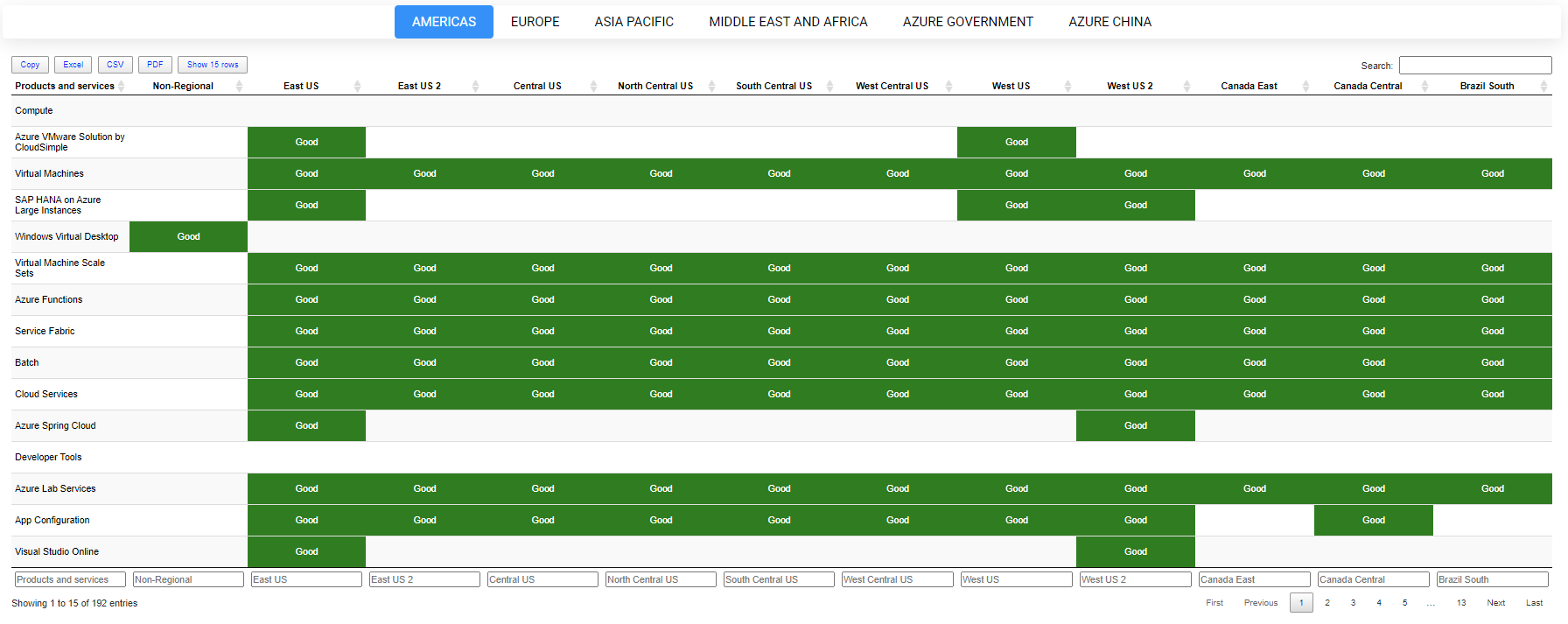
Since [**PSWriteHTML**](https://github.com/EvotecIT/PSWriteHTML)is my most loved **PowerShell module** – the output is somewhat impressive (if you ask me!) for the **20 lines** of **code**. You can see the generated version of [Azure Health Service Dashboard](/wp-content/uploads/2019/12/AzureHealthServiceDashboard.html) – or enjoy the screenshot. It shows what you need to see.
[!\[Rendered Azure Health Service dashboard generated with PSWriteHTML\](/wp-content/uploads/2019/12/img_5dec1b4ac3d16.png)](/wp-content/uploads/2019/12/img_5dec1b4ac3d16.png)
I was thinking, how cool would it be to combine **Office 365** and **Azure Dashboards**.
```powershell
$ApplicationID = 'b0dd548' # make sure to use your appid
$ApplicationKey = 'a9rZ' # make sure to use your appkey
$TenantDomain = 'ceb37' # make sure to use your tenant domain or directory id
$O365 = Get-Office365Health -ApplicationID $ApplicationID -ApplicationKey $ApplicationKey -TenantDomain $TenantDomain -ToLocalTime -Verbose
$Azure = Get-WinAzureHealth -Formatted
#$O365.CurrentStatusExtended | Format-Table -AutoSize
Dashboard -FilePath $PSScriptRoot\Health.html {
Tab -Name 'Azure' {
foreach ($Region in $Azure.Keys) {
Tab -Name $Region {
Table -DataTable $Azure.$Region -Filtering {
foreach ($Column in $Azure.$Region[0].PSObject.Properties.Name) {
TableConditionalFormatting -Name $Column -Value 'Good' -BackGroundColor Green -Color White -Alignment center
TableConditionalFormatting -Name $Column -Value 'Information' -BackGroundColor Blue -Color White -Alignment center
TableConditionalFormatting -Name $Column -Value 'Warning' -BackGroundColor Orange -Alignment center
TableConditionalFormatting -Name $Column -Value 'Critical' -BackGroundColor Red -Color White -Alignment center
}
}
}
}
}
Tab -Name 'Services' {
Section -Invisible {
Section -Name 'Service List' {
Table -DataTable $O365.Services
}
Section -Name 'Service & Feature List' {
Table -DataTable $O365.ServicesExtended
}
}
}
Tab -Name 'Current Status' {
Section -Invisible {
Section -Name 'Current Status' {
Table -DataTable $O365.CurrentStatus
}
Section -Name 'Current Status Extended' {
Table -DataTable $O365.CurrentStatusExtended
}
}
}
Tab -Name 'Historical Status' {
Section -Invisible {
Section -Name 'Historical Status' {
Table -DataTable $O365.HistoricalStatus
}
Section -Name 'Historical Status Extended' {
Table -DataTable $O365.HistoricalStatusExtended
}
}
}
Tab -Name 'Message Center Information' {
Section -Invisible {
Section -Name 'Message Center' {
Table -DataTable $O365.MessageCenterInformation
}
Section -Name 'Message Center Extended' {
Table -DataTable $O365.MessageCenterInformationExtended -InvokeHTMLTags
}
}
}
Tab -Name 'Incidents' {
Section -Invisible {
Section -Name 'Incidents' {
Table -DataTable $O365.Incidents
}
Section -Name 'Incidents Extended' {
Table -DataTable $O365.IncidentsExtended
}
}
}
Tab -Name 'Incidents Messages' {
Section -Invisible {
Section -Name 'Incidents Messages' {
Table -DataTable $O365.IncidentsMessages
}
}
}
Tab -Name 'Planned Maintenance' {
Section -Invisible {
Section {
Table -DataTable $O365.PlannedMaintenance
}
Section {
Table -DataTable $O365.PlannedMaintenanceExtended
}
}
}
}
```
[!\[Combined health dashboard with nested Azure tabs and Office 365 service sections\](/wp-content/uploads/2019/12/img_5dec1e795a7f7.png)](/wp-content/uploads/2019/12/img_5dec1e795a7f7.png)[!\[Additional view of the merged Azure and Office 365 health dashboard\](/wp-content/uploads/2019/12/img_5dec1e91ace26.png)](/wp-content/uploads/2019/12/img_5dec1e91ace26.png)
Merging both **dashboards** was entirely trivial and allowed me to have one tab with multiple nested tabs for **Azure** and a couple of tabs for different types of data from **Office 365 Health Service**. I could, of course, build multiple nested tables with some fancy formatting. Let's see what small change to code does.
```powershell
$ApplicationID = 'b0dd54'
$ApplicationKey = 'a9rZ2U'
$TenantDomain = 'ce'
$O365 = Get-Office365Health -ApplicationID $ApplicationID -ApplicationKey $ApplicationKey -TenantDomain $TenantDomain -ToLocalTime -Verbose
$Azure = Get-WinAzureHealth -Formatted
#$O365.CurrentStatusExtended | Format-Table -AutoSize
Dashboard -FilePath $PSScriptRoot\Health.html {
Tab -Name 'Azure' {
foreach ($Region in $Azure.Keys) {
Tab -Name $Region {
Table -DataTable $Azure.$Region -Filtering {
foreach ($Column in $Azure.$Region[0].PSObject.Properties.Name) {
TableConditionalFormatting -Name $Column -Value 'Good' -BackGroundColor Green -Color White -Alignment center
TableConditionalFormatting -Name $Column -Value 'Information' -BackGroundColor Blue -Color White -Alignment center
TableConditionalFormatting -Name $Column -Value 'Warning' -BackGroundColor Orange -Alignment center
TableConditionalFormatting -Name $Column -Value 'Critical' -BackGroundColor Red -Color White -Alignment center
}
}
}
}
}
Tab -Name 'Services' {
Section -Invisible {
Section -Name 'Service List' {
Table -DataTable $O365.Services
}
Section -Name 'Service & Feature List' {
Table -DataTable $O365.ServicesExtended
}
}
}
Tab -Name 'Current Status' {
Section -Invisible {
Section -Name 'Current Status' {
Table -DataTable $O365.CurrentStatus {
TableConditionalFormatting -Name 'ServiceStatus' -Value 'Normal service' -BackGroundColor Green -Alignment center -Color White
TableConditionalFormatting -Name 'ServiceStatus' -Value 'Service degradation' -BackGroundColor Red -Alignment center -Color White
TableConditionalFormatting -Name 'ServiceStatus' -Value 'Restoring service' -BackGroundColor BlueDiamond -Alignment center -Color White
}
}
Section -Name 'Current Status Extended' {
Table -DataTable $O365.CurrentStatusExtended {
TableConditionalFormatting -Name 'ServiceStatus' -Value 'Normal service' -BackGroundColor Green -Alignment center -Color White
TableConditionalFormatting -Name 'ServiceStatus' -Value 'Service degradation' -BackGroundColor Red -Alignment center -Color White
TableConditionalFormatting -Name 'ServiceStatus' -Value 'Restoring service' -BackGroundColor BlueDiamond -Alignment center -Color White
}
}
}
}
Tab -Name 'Historical Status' {
Section -Invisible {
Section -Name 'Historical Status' {
Table -DataTable $O365.HistoricalStatus
}
Section -Name 'Historical Status Extended' {
Table -DataTable $O365.HistoricalStatusExtended
}
}
}
Tab -Name 'Message Center Information' {
Section -Invisible {
Section -Name 'Message Center' {
Table -DataTable $O365.MessageCenterInformation
}
Section -Name 'Message Center Extended' {
Table -DataTable $O365.MessageCenterInformationExtended -InvokeHTMLTags
}
}
}
Tab -Name 'Incidents' {
Section -Invisible {
Section -Name 'Incidents' {
Table -DataTable $O365.Incidents
}
Section -Name 'Incidents Extended' {
Table -DataTable $O365.IncidentsExtended
}
}
}
Tab -Name 'Incidents Messages' {
Section -Invisible {
Section -Name 'Incidents Messages' {
Table -DataTable $O365.IncidentsMessages
}
}
}
Tab -Name 'Planned Maintenance' {
Section -Invisible {
Section {
Table -DataTable $O365.PlannedMaintenance
}
Section {
Table -DataTable $O365.PlannedMaintenanceExtended
}
}
}
} -Show
```
Much better right?
[!\[Improved Office 365 current status table with conditional formatting in the dashboard\](/wp-content/uploads/2019/12/img_5dec23010d402.png)](/wp-content/uploads/2019/12/img_5dec23010d402.png)
### 💡 Playing with PSParseHTML ConvertFrom-HTMLTable
As mentioned in the beginning, **ConvertFrom-HTMLTable** is pretty flexible in what it can do. Do you want **Premier League Table**?
```powershell
$Test = ConvertFrom-HtmlTable -Url 'https://www.goal.com/en-us/premier-league/table/2kwbbcootiqqgmrzs6o5inle5'
$Test | Format-Table -AutoSize *
```
[!\[PowerShell output showing a parsed Premier League table from a website\](/wp-content/uploads/2019/12/img_5dec2aae543c1.png)](/wp-content/uploads/2019/12/img_5dec2aae543c1.png)
The only thing is when I started writing this blog post, I've noticed that what is shown by **PowerShell** is not really what is on the website. As you can see below, the **Premier League Table** has a lot more columns.
[!\[Premier League table on the source website with more columns than the parsed output\](/wp-content/uploads/2019/12/img_5decbf38588bb.png)](/wp-content/uploads/2019/12/img_5decbf38588bb.png)
After playing with my module a bit, I've noticed that an engine I'm using to parse websites doesn't seem to notice those additional columns. Fortunately, I found another **NET library** that was able to see the table as it is. After some time working prototype was here. I've decided to leave both engines available, therefore, you can always see if there's a problem with one giving you the wrong results.
```powershell
$Test = ConvertFrom-HtmlTable -Url 'https://www.goal.com/en-us/premier-league/table/2kwbbcootiqqgmrzs6o5inle5'
$Test | Format-Table -AutoSize *
$Test = ConvertFrom-HtmlTable -Url 'https://www.goal.com/en-us/premier-league/table/2kwbbcootiqqgmrzs6o5inle5' -Engine AngleSharp
$Test | Format-Table -AutoSize *
```
[!\[Comparison of table parsing results using the default engine and AngleSharp\](/wp-content/uploads/2019/12/img_5decbfffa4e3a.png)](/wp-content/uploads/2019/12/img_5decbfffa4e3a.png)
The default engine is based on **HtmlAgilityPack**, while the old engine is based on **AngleSharp**. You can also notice that the first table has columns called 1 and 2. My function when it sees that the column name is empty doesn't skip it but instead gives it a number. It's because there's no way to tell whether the column content will be empty or not. You can **remove those empty columns** at your discretion. I may need to solve one more issue with this later on where some tables on the internet will have column names being numbers and at the same time, having empty columns. But that's for another time. If you hit that issue let me know and we'll figure something out.
### 💡 ConvertFrom-HTMLTable – Different table types
Let's take a look at another example. Wikipedia pages holds a lot of tables. Some are standard tables, some not so much.
```powershell
$html = (Invoke-WebRequest -Uri 'https://en.wikipedia.org/wiki/PowerShell').Content
$Tables = ConvertFrom-HtmlTable -Content $html
foreach ($Table in $Tables) {
$Table | Format-Table -AutoSize *
}
# Alternatively
$Tables = ConvertFrom-HtmlTable -Url 'https://en.wikipedia.org/wiki/PowerShell'
# If converting multiple tables, the output will look funky
# since it is creating an array of different objects.
$Tables[0] | Format-Table -AutoSize
$Tables[1] | Format-Table -AutoSize
$Tables[2] | Format-Table -AutoSize
$Tables[3] | Format-Table -AutoSize
# ... etc
```
[!\[Parsed Wikipedia PowerShell tables where the first table is missing some data\](/wp-content/uploads/2019/12/img_5deced7bb6e6a.png)](/wp-content/uploads/2019/12/img_5deced7bb6e6a.png)
If you take a look at the screenshot above from two first tables of **PowerShell** content on **Wikipedia**, you will notice only the 2nd table is correct. The first is missing data. This is because the tables are built-in a different way that the standard **method of parsing** tables doesn't work. For the **3rd table** it's again **read correctly**, as you can see on the below screenshot.
[!\[Third Wikipedia PowerShell table parsed correctly in PowerShell output\](/wp-content/uploads/2019/12/img_5deced8d65d73.png)](/wp-content/uploads/2019/12/img_5deced8d65d73.png)
**ConvertFrom-HTMLTable** surely requires some work. I did try to address this issue with the code below by adding **ReverseTable** switch.
```powershell
# Method to extract special case tables
$Tables1 = ConvertFrom-HtmlTable -Url 'https://en.wikipedia.org/wiki/PowerShell' -ReverseTable
$Tables2 = ConvertFrom-HtmlTable -Url 'https://en.wikipedia.org/wiki/PowerShell'
New-HTML {
New-HTMLTab -Name 'Reverse Table' {
foreach ($Table in $Tables1) {
New-HTMLTable -DataTable $Table -Filtering
}
}
New-HTMLTab -Name 'Non-Reverse Table' {
foreach ($Table in $Tables2) {
New-HTMLTable -DataTable $Table -Filtering
}
}
} -FilePath "$PSScriptRoot\Output\Example.Wikipedia.html" -ShowHTML -UseCssLinks -UseJavaScriptLinks
```
It should properly build the 1st table and probably few others that the first method failed to build. At the same time old tables that worked fine are now in broken state.
[!\[ReverseTable parsing output showing mixed results for special Wikipedia tables\](/wp-content/uploads/2019/12/img_5decf10ee4a9d.png)](/wp-content/uploads/2019/12/img_5decf10ee4a9d.png)
As you can see** there's no silver bullet** for this **yet**. My goal for this function would be to detect **different versions of tables** (probably at least three types) and deliver them as a single output without need for diffent switches. Until that happens – you can work with what there is. If you have ideas on how to solve it – let me know – or better submit **[PR on GitHub](https://github.com/EvotecIT/PSParseHTML)**.
### 💡 Summary
Hopefully, after today, you'll get to enjoy two PowerShell modules. One is already few months on the market, the other one joins my portfolio today.:
- 🌐 [PSParseHTML](https://github.com/EvotecIT/PSParseHTML) – PowerShell module that can help you process HTML Tables, but hopefully also other types of parsing HTML functionality
- 🌐 [PSWinDocumentation.AzureHealthService](https://github.com/EvotecIT/PSWinDocumentation.AzureHealthService) – PowerShell module that delivers Azure Health with single command
Remember that any issues, feedback, or feature requests should go to **GitHub**. Also, if you like any of my work **I would appreciate a star** on a project. This allows you to track the progress, and for me, it's a clear indication that the module should be developed further.
## Projets associés
Projets liés aux tags, catégories et au contenu de cet article.
[Tous les projets](/fr/projets/)
Recherche des projets associés...
[Retour au blog](/blog)
## Articles associés
- [Turn HTML tables into Excel workbooks with PSParseHTML and PSWriteOffice](/fr/blog/turn-html-tables-into-excel-workbooks-psparsehtml-pswriteoffice/)
- [Formatting and minifying resources (HTML, CSS, JavaScript) with PowerShell](/fr/blog/formatting-and-minifying-resources-html-css-javascript-with-powershell/)
- [Preparing Azure App Registrations permissions for Office 365 Service Health](/fr/blog/preparing-azure-app-registrations-permissions-for-office-365-health-service/)