

blog
Granting “Logon as a batch job” permission for Task Scheduler to work
Running a scheduled task as SYSTEM is fine until the job needs access to network resources, another server, or a dedicated service identity. That is where many administrators switch to a domain or local service account and then hit an authentication failure because the account does not have the Log on as a batch job user right.
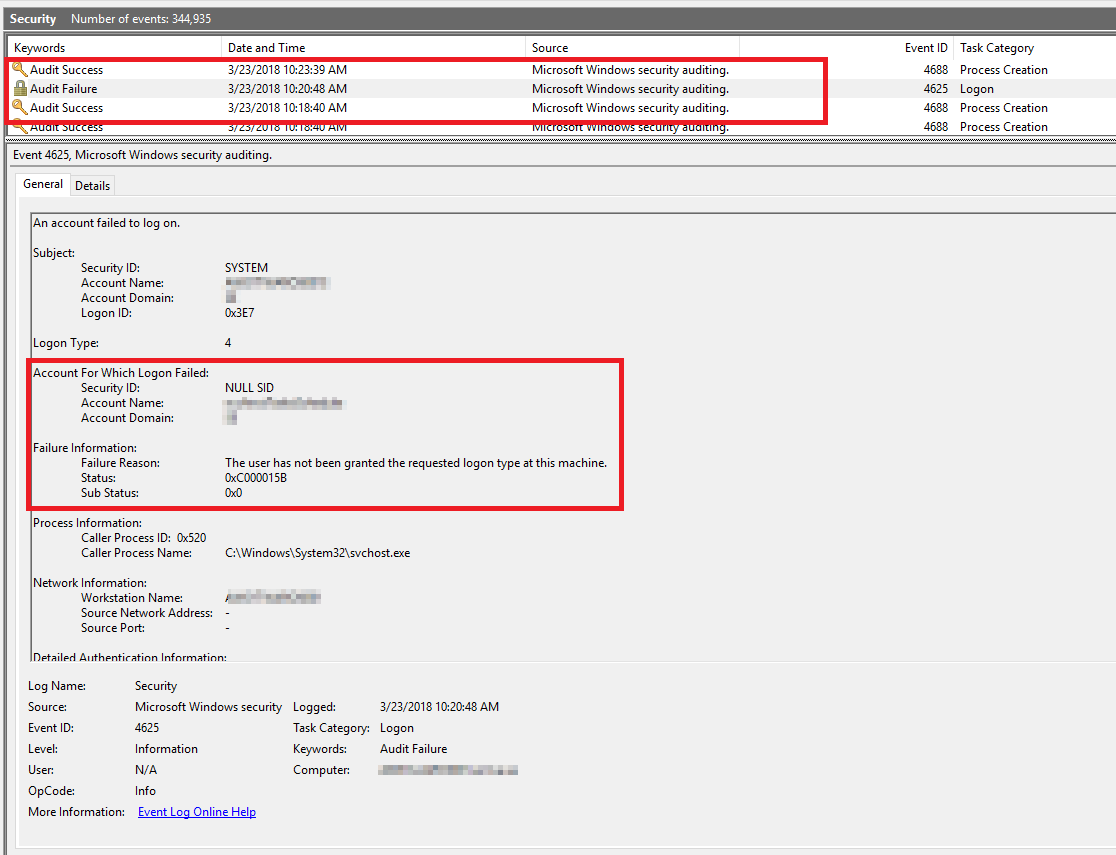
One common symptom is a failed task together with a corresponding Event ID 4625 security log entry.
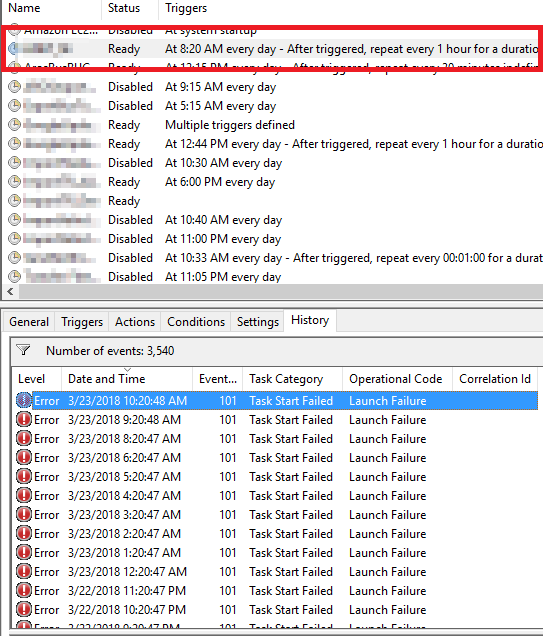
And in Task Scheduler history
Grant the right in Local Security Policy
To assign it locally:
- In the Control Panel, open Administrative Tools, then Local Security Policy.
- Beneath Security Settings, open Local Policies and highlight User Rights Assignment.
- Locate Log on as a batch job. Open the properties and add any users that need this right.
- When finished, save your changes and close the Local Security Settings window.
Why it still may not work
This is the part that catches people: a local change can be overwritten by Group Policy. Microsoft documents that domain-based Group Policy settings are applied in precedence order and can replace the local assignment. So if you add an account locally and the right disappears later, check the effective domain GPOs before assuming Task Scheduler is broken.
Also check for the matching deny right:
Deny log on as a batch job
If that deny setting contains the same account or one of its groups, it will win.
When the change takes effect
Microsoft notes that a reboot is not required for this policy change, but the updated user-right assignment becomes effective the next time the account logs on. For scheduled tasks, that usually means you should save the task again or rerun it after the policy is in place.
Practical advice
- Use a dedicated account only when the task genuinely needs its own identity.
- Prefer least privilege instead of adding the account to broad admin groups.
- If the task works as
SYSTEMbut fails as a custom account, user-right assignment is one of the first things to check.
This is a small setting, but it is one of the classic reasons a scheduled task looks correct and still refuses to run.