

blog
Build an editable PowerPoint service brief from PowerShell

My first PowerPoint automation scripts knew the position and size of almost every shape. They worked, but changing the layout meant changing a page of coordinates, and every new slide copied a little more design knowledge into the script.
The newer OfficeIMO designer APIs let me describe the slide instead: this is a process, these are cards, and this section contains the evidence. The engine chooses the initial layouts and produces an editable .pptx. PSWriteOffice brings that model into PowerShell while keeping explicit chart, table, notes, and shape commands for slides that need precise control.
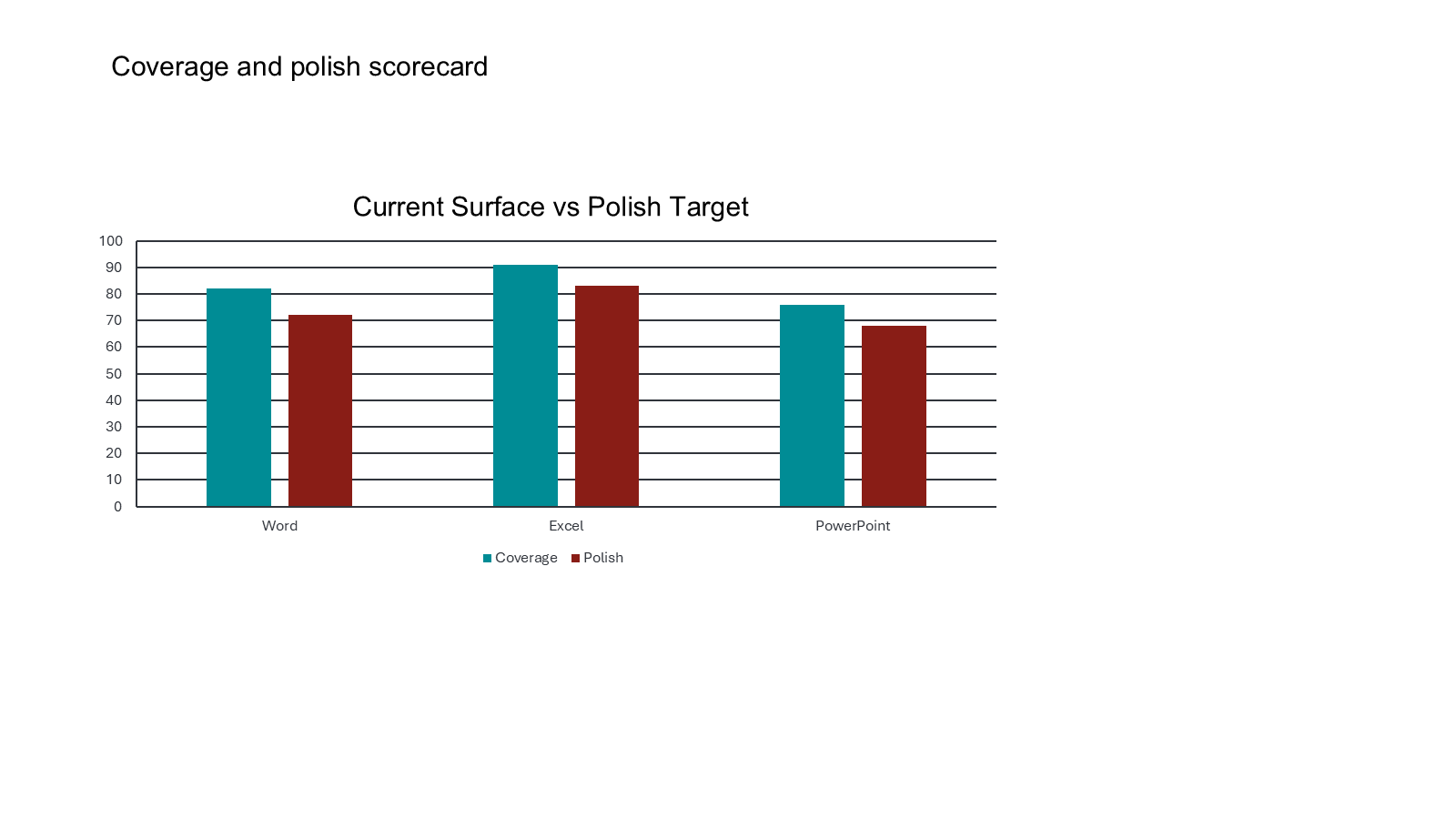
This example tells the story of building the PSWriteOffice examples. It turns delivery steps, responsibilities, sample metrics, and next actions into an eight-slide deck. The Coverage and Polish values are fictional chart data, rather than product scores or a roadmap. Replace them with service-health data, project status, or another briefing that belongs beside the Word and Excel reports in this series.
Before you start
Use PowerShell 7 and install the current public modules used for this article:
Install-Module PSWriteOffice -Scope CurrentUser -Force
Import-Module PSWriteOffice
Run the examples from a folder where you can write the generated files. Replace the fictional values after the first successful run.
What the example builds
The full showcase script lives in the PSWriteOffice repository. The blocks below build its eight-slide compact version.
It creates a service brief deck with:
- 16:9 slide size
- branded accent color
- OfficeIMO designer deck-plan rendering
- section slide
- process slide
- card-grid slide
- coverage/map-like slide
- capability slide
- case-study slide
- explicit chart slide
- explicit table slide
- speaker notes
- named sections
- slide transitions
- structural slide read-back
The deck stays editable. That is what makes the example useful to me: PowerShell creates the first solid version, and a presenter can still adjust the wording or move a shape before the meeting.
Deck plan first
I begin with the information that belongs in the story: process steps, product cards, coverage areas, capabilities, and metrics.
$process = @(
    [pscustomobject]@{
        Title = 'Compare'
        Description = 'Map PSWriteOffice against OfficeIMO capabilities.'
        AccentColor = '#008C95'
    }
    [pscustomobject]@{
        Title = 'Compose'
        Description = 'Create showcase scripts that generate real artifacts.'
        AccentColor = '#3B82F6'
    }
    [pscustomobject]@{
        Title = 'Publish'
        Description = 'Use screenshots, code, and blogs to explain the output.'
        AccentColor = '#F59E0B'
    }
)

$cards = @(
    [pscustomobject]@{ Title = 'Word'; Items = 'TOC|sections|tables|charts|approvals'; AccentColor = '#2F80ED' }
    [pscustomobject]@{ Title = 'Excel'; Items = 'dashboard|pivots|sparklines|validation|links'; AccentColor = '#219653' }
    [pscustomobject]@{ Title = 'PowerPoint'; Items = 'designer plans|process|cards|coverage|notes'; AccentColor = '#9B51E0' }
    [pscustomobject]@{ Title = 'Blog'; Items = 'screenshots|code|generated covers|artifact links'; AccentColor = '#F2994A' }
)

$coverage = @(
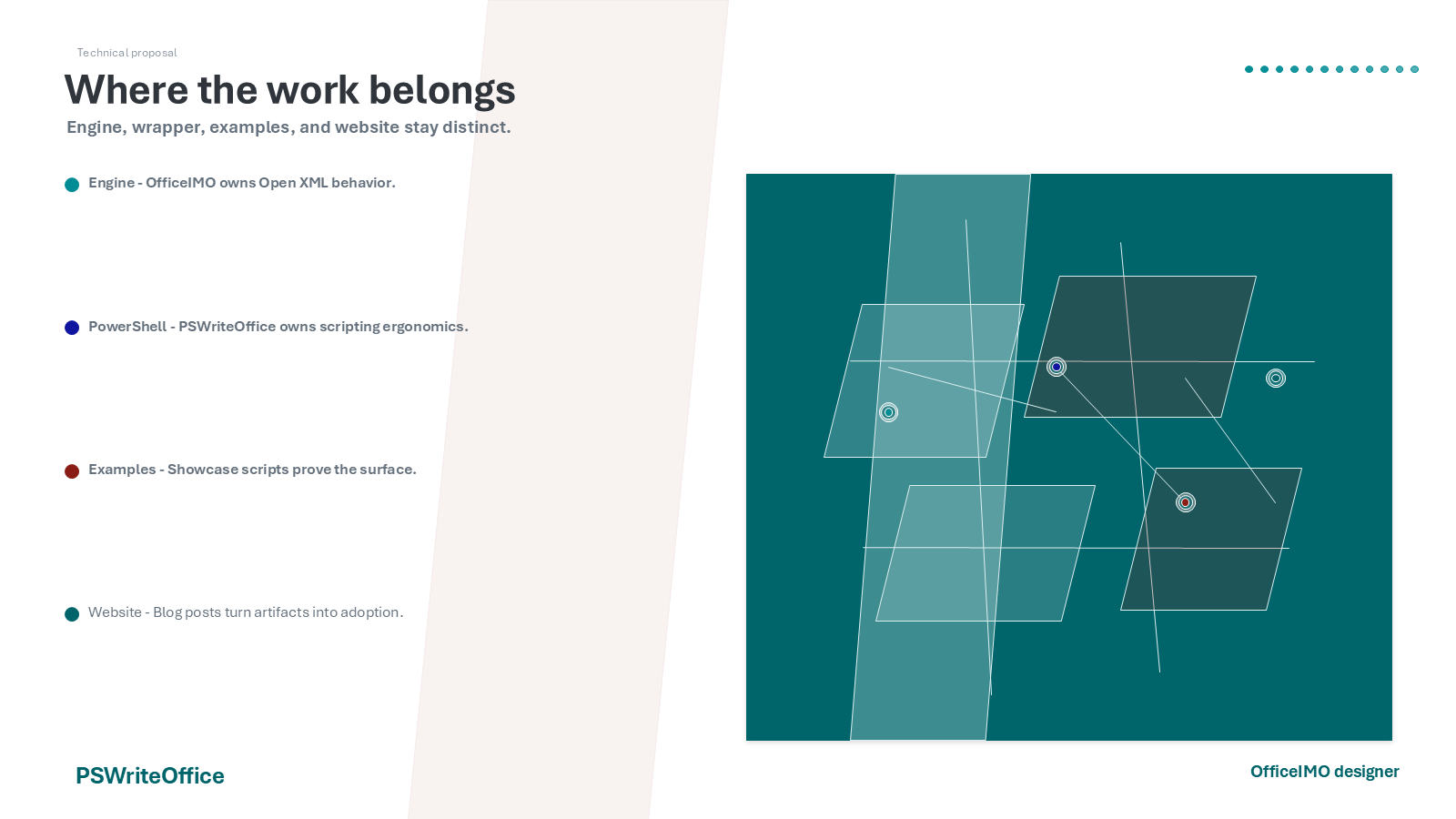
    [pscustomobject]@{ Name = 'Engine'; X = 0.22; Y = 0.42; Detail = 'OfficeIMO owns Open XML behavior.' }
    [pscustomobject]@{ Name = 'PowerShell'; X = 0.48; Y = 0.34; Detail = 'PSWriteOffice owns scripting ergonomics.' }
    [pscustomobject]@{ Name = 'Examples'; X = 0.68; Y = 0.58; Detail = 'Showcase scripts prove the surface.' }
    [pscustomobject]@{ Name = 'Website'; X = 0.82; Y = 0.36; Detail = 'Blog posts turn artifacts into adoption.' }
)

$capabilities = @(
    [pscustomobject]@{ Heading = 'Readable by humans'; Body = 'Outputs should look like business artifacts, not raw exports.'; Items = 'visual hierarchy|navigation|metadata' }
    [pscustomobject]@{ Heading = 'Useful to scripts'; Body = 'Generated files should be inspectable and testable.'; Items = 'summaries|parts|deterministic paths' }
    [pscustomobject]@{ Heading = 'Fast enough to reuse'; Body = 'Examples should avoid desktop Office for generation.'; Items = 'Open XML|small fixtures|single-save flow' }
)

$caseStudy = @(
    [pscustomobject]@{ Heading = 'Problem'; Body = 'Basic examples hide how much OfficeIMO can already produce.' }
    [pscustomobject]@{ Heading = 'Approach'; Body = 'Expose semantic PowerPoint plans and richer Office examples through PSWriteOffice.' }
    [pscustomobject]@{ Heading = 'Outcome'; Body = 'A test-drive deck that remains editable and visually credible.' }
)

$metrics = @(
    [pscustomobject]@{ Value = '3'; Label = 'flagship products' }
    [pscustomobject]@{ Value = '1'; Label = 'shared showcase plan' }
    [pscustomobject]@{ Value = '0'; Label = 'desktop Office dependency' }
)

$chartRows = @(
    [pscustomobject]@{ Product = 'Word'; Coverage = 82; Polish = 72 }
    [pscustomobject]@{ Product = 'Excel'; Coverage = 91; Polish = 83 }
    [pscustomobject]@{ Product = 'PowerPoint'; Coverage = 76; Polish = 68 }
)

$tableRows = @(
    [pscustomobject]@{ Area = 'Designer bridge'; Status = 'Added'; Next = 'Add more variant knobs' }
    [pscustomobject]@{ Area = 'Showcase deck'; Status = 'Added'; Next = 'Export screenshots' }
    [pscustomobject]@{ Area = 'Blog post'; Status = 'Planned'; Next = 'Write after visuals' }
)

$path = '.\PSWriteOffice-Service-Brief.pptx'
Then I map those objects into a deck plan:
$plan = New-OfficePowerPointDeckPlan {
    Add-OfficePowerPointPlanSection `
        -Title 'PSWriteOffice Showcase' `
        -Subtitle 'Beautiful, useful Office artifacts from PowerShell' `
        -Seed 'showcase-cover'

    Add-OfficePowerPointPlanProcess `
        -Title 'From objects to publishable artifacts' `
        -Subtitle 'A repeatable path for examples and blog posts' `
        -Steps $process `
        -Seed 'delivery-process'

    Add-OfficePowerPointPlanCardGrid `
        -Title 'Product surfaces' `
        -Subtitle 'Each product should show a real workflow, not only primitives.' `
        -Cards $cards `
        -Seed 'product-cards'

    Add-OfficePowerPointPlanCoverage `
        -Title 'Where the work belongs' `
        -Subtitle 'Engine, wrapper, examples, and website stay distinct.' `
        -Locations $coverage `
        -Seed 'coverage-map'

    Add-OfficePowerPointPlanCapability `
        -Title 'Quality bar' `
        -Subtitle 'The showcase should be practical enough to copy and attractive enough to publish.' `
        -Sections $capabilities `
        -Seed 'quality-bar'

    Add-OfficePowerPointPlanCaseStudy `
        -Title 'PowerPoint designer bridge' `
        -Sections $caseStudy `
        -Metrics $metrics `
        -Seed 'designer-case-study'
}
The script now says what each slide is for. It no longer has to explain where every title and card should sit.
Writing slides two ways
The example uses two writing modes:
- Semantic slides through
New-OfficePowerPointDeckPlanandAdd-OfficePowerPointDesignerDeck. - Explicit evidence slides through
PptSlide,PptChart,PptTable, andPptNotes.
I use designer composition for the narrative slides. For evidence, I usually want the chart, table, and speaker notes to be explicit so the result is predictable.
Build the deck once
The showcase renders the deck plan, adds the evidence slides, creates sections, and applies transitions in one composition block. The presentation is saved once instead of being reopened for every step.
PptNew -Path $path {
    PptSlideSize -Preset Screen16x9

    PptDesignerDeck `
        -Plan $plan `
        -AccentColor '#008C95' `
        -Seed 'pswriteoffice-showcase' `
        -Purpose 'technical service brief' `
        -Name 'PSWriteOffice Showcase' `
        -FooterLeft 'PSWriteOffice' `
        -FooterRight 'OfficeIMO designer' `
        -CreativeDirectionPack TechnicalMap `
        -LayoutStrategy ContentFirst

    $chartSlide = PptSlide -PassThru
    PptTitle -Slide $chartSlide -Title 'Coverage and polish scorecard'

    PptChart `
        -Slide $chartSlide `
        -Data $chartRows `
        -CategoryProperty Product `
        -SeriesProperty Coverage,Polish `
        -Type ClusteredColumn `
        -Title 'Current Surface vs Polish Target' `
        -X 58 `
        -Y 118 `
        -Width 610 `
        -Height 265

    PptNotes -Slide $chartSlide -Text 'Use this slide as the bridge between the designer slides and the concrete backlog.'

    $tableSlide = PptSlide -PassThru
    PptTitle -Slide $tableSlide -Title 'Immediate implementation path'

    PptTable `
        -Slide $tableSlide `
        -Data $tableRows `
        -X 64 `
        -Y 132 `
        -Width 590 `
        -Height 210

    PptNotes -Slide $tableSlide -Text 'Close with the next concrete pull request slices: visual screenshots, blog drafts, and richer wrappers.'

    PptSection -Name 'Designer story' -StartSlideIndex 0
    PptSection -Name 'Evidence appendix' -StartSlideIndex 6
    PptTransition -Slide $chartSlide -Transition PushLeft
    Get-OfficePowerPointSlide -Index 0 | PptTransition -Transition Fade
}
I use the concise aliases consistently in this block; the longer command names remain available in help. The output is a normal presentation that can be edited, presented, imported into another deck, or reused as a template.
Use a presentation object for loop-driven decks
When a loop or condition decides which slides to add, I keep the live presentation object instead of forcing everything into one DSL block:
$presentation = New-OfficePowerPoint -Path '.\Customer-Briefing.pptx' -NoSave
$slide = Add-OfficePowerPointSlide -Presentation $presentation -LayoutType Text -PassThru
Set-OfficePowerPointSlideTitle -Slide $slide -Title 'Actions'
Add-OfficePowerPointTextBox -Slide $slide -Text 'Confirm the production date.' -X 90 -Y 170 -Width 700 -Height 60
$presentation | Save-OfficePowerPoint
$presentation | Close-OfficePowerPoint
Both forms use the same engine and document model. Pick the one that makes the surrounding script easier to follow.
Reading and validating the deck
After saving, I read the deck back. CI can then check the slide count, notes, sections, and evidence slides instead of only checking that a .pptx file exists.
$presentation = Get-OfficePowerPoint -Path $path
$summary = @(Get-OfficePowerPointSlideSummary -Presentation $presentation)
$presentation | Close-OfficePowerPoint

$summary |
    Select-Object SlideIndex, Title, ShapeCount, TextBoxCount, ChartCount, TableCount, HasNotes
You can turn the same read-back into assertions:
if (($summary | Where-Object ChartCount -gt 0).Count -lt 1) {
    throw 'Expected at least one chart slide.'
}

if (($summary | Where-Object HasNotes).Count -lt 2) {
    throw 'Expected speaker notes for presenter handoff.'
}
These checks verify the structure. I still open a representative deck in the presentation application people will use, because an object count cannot confirm fonts, layout, transitions, or presenter notes.
Performance and scale
Most PowerPoint generation time is lost to repeated file opens and layout work the script did not need to repeat.
- Build the deck plan in memory, then render once.
- Use semantic sections for narrative content instead of manually placing every shape.
- Use explicit chart/table slides only where the evidence needs it.
- Keep images and background assets sized reasonably before embedding.
- Add notes during generation instead of reopening slides later.
- Validate slide summaries instead of parsing every Open XML part in routine tests.
For a larger briefing, I split the deck into cover, story, evidence, appendix, and handoff sections. The generated file is easier to navigate, and the script has clear places to add new material.
Where I use the same approach
The same mix of designed narrative slides and explicit evidence slides works for:
- monthly service review decks with charts, owner actions, and speaker notes
- customer delivery packs with milestones, capabilities, case studies, and appendix tables
- security or compliance briefings with risk trends and remediation roadmaps
- project status decks generated from issue trackers or planning systems
- reusable consulting templates where data changes but the story structure stays stable
After the first generated deck
Generation is only one part of the PowerPoint workflow. The same module can inspect an existing deck, copy approved slides into another presentation, update text and notes, organize sections, and export an HTML review surface.
I still use coordinates when a slide genuinely needs exact placement. The difference is that they are now the exception. Most of the script describes the story and data, while the few evidence slides keep the precise layout they need.