

blog
PowerBGInfo 2.x: support-ready Windows backgrounds from PowerShell

I have always liked the basic BGInfo idea: show the machine details where the user or technician can see them immediately. The awkward part starts when the device has two monitors, Windows is rotating wallpapers, the support details come from several systems, and the finished background has to be deployed through policy.
PowerBGInfo is my PowerShell take on that job. Version 2.x can build desktop and logon backgrounds from a script or reusable JSON configuration. It controls placement and deployment, and it can include charts, topology, and other composed visuals when plain text is not enough.
I mainly see it fitting these machines:
- shared admin workstations
- lab and classroom machines
- build agents and test hosts
- kiosks and training devices
- support desktops
- environments where machine identity must be visible at a glance
Before you start
Use PowerShell 7 and install the current public modules used for this article:
Install-Module PowerBGInfo -Scope CurrentUser -Force
Import-Module PowerBGInfo
Run the examples from a folder where you can write the generated files, and replace the sample values with details that make sense in your environment.
Put the right facts on the screen
Built-in values cover the usual machine and user facts: hostname, operating system, CPU, memory, BIOS, disks, network addresses, domain, and user identity. Custom values can come from PowerShell, CIM, the registry, Active Directory, an API, or an RMM tool.
It is tempting to put everything on the wallpaper. I try to keep it to the questions someone asks during the first minute of a support call:
- which machine and user am I looking at?
- which environment or role does it belong to?
- what is the primary IP address?
- what Windows build is running?
- where should the user or technician ask for help?
- is there one operational state that requires attention?
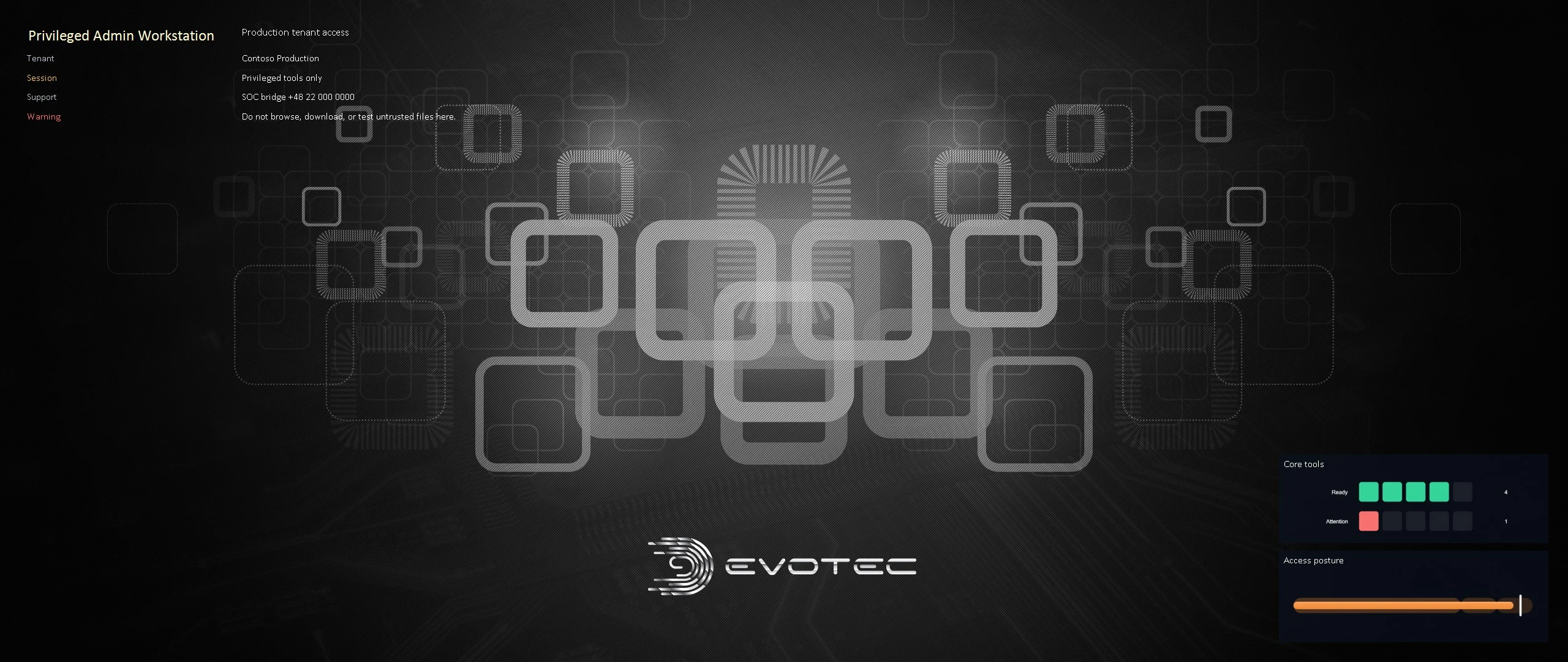
Author once, deploy from JSON
Long layout scripts are awkward to paste into scheduled tasks, imaging steps, and RMM policies. I prefer to author and preview the layout once, export it to JSON, and let deployment run that reviewed configuration.
$configurationDirectory = (New-Item -ItemType Directory -Path '.\BGInfoPreview' -Force).FullName
$configPath = Join-Path $configurationDirectory 'workstation.json'

New-BGInfo {
    New-BGInfoValue -BuiltinValue HostName -Name 'Machine'
    New-BGInfoValue -BuiltinValue FullUserName -Name 'User'
    New-BGInfoValue -BuiltinValue OSName -Name 'Operating system'
    New-BGInfoValue -Name 'Support' -Value 'helpdesk@contoso.com'
} -MonitorIndex 0 `
    -Target File `
    -ConfigurationDirectory $configurationDirectory `
    -OutputFileName 'workstation-preview.png' `
    -JsonPath $configPath `
    -ExportOnly

Invoke-BGInfo -Path $configPath
The JSON can be reviewed and versioned beside the deployment policy. The scheduled task or RMM action only has to run a known configuration, which also makes later layout changes much easier to review.
Preview before changing a desktop
While building a layout, I use -Target File and an explicit output name. Comparing two files is much easier than changing my desktop after every edit, and the preview can be attached to a pull request or change record.
Once the preview looks right, choose the deployment target:
- current user for a normal sign-in or scheduled refresh
- all existing users and the default profile for a shared device
- logon screen for system-level context
- both desktop and logon screen when the same policy belongs in each place
All-users and logon-screen changes require elevation. Test them on the Windows versions and management baselines used by the fleet before turning the configuration into policy.
Multi-monitor placement and wallpaper behavior
Information that fits a 1920×1080 primary monitor may cover the subject of an ultrawide wallpaper or appear on the wrong screen after docking. PowerBGInfo supports monitor selection, corner and center anchors, offsets, and explicit placement, but I still preview the result at the resolutions people actually use.
Wallpaper slideshows need a decision as well. PowerBGInfo can render every slideshow source or replace the slideshow with one static result. It also handles the Windows wallpaper refresh path so the new file is shown instead of an older cached copy.
Charts should answer a small operational question
PowerBGInfo 2.x can add ChartForgeX visuals to the wallpaper. I would not turn every desktop into a monitoring dashboard, but one small chart can answer a useful local question:
- CPU or memory trend on a lab host
- workspace disk usage on a build agent
- patch target on an admin workstation
- exercise progress on a training machine
- service state on a support desktop
New-BGInfoChart `
    -Id 'cpu-history' `
    -Title 'CPU history' `
    -Metric CpuPercent `
    -Kind Area `
    -ValueSuffix '%' `
    -Width 360 `
    -Height 145 `
    -MaxPoints 60 `
    -Anchor BottomLeft `
    -OffsetX 20 `
    -OffsetY 20
Place the chart declaration inside the New-BGInfo { ... } block above. CPU history accumulates as the background is refreshed, so the first render will not contain sixty historical samples. Leave enough space between overlays and inspect the file preview at the target resolution.
Topology can provide immediate context
A small topology overlay can show which services belong to a lab, the route to an application, or the owners of a shared machine. PowerBGInfo supplies the nodes and edges; ChartForgeX handles the layout and drawing.
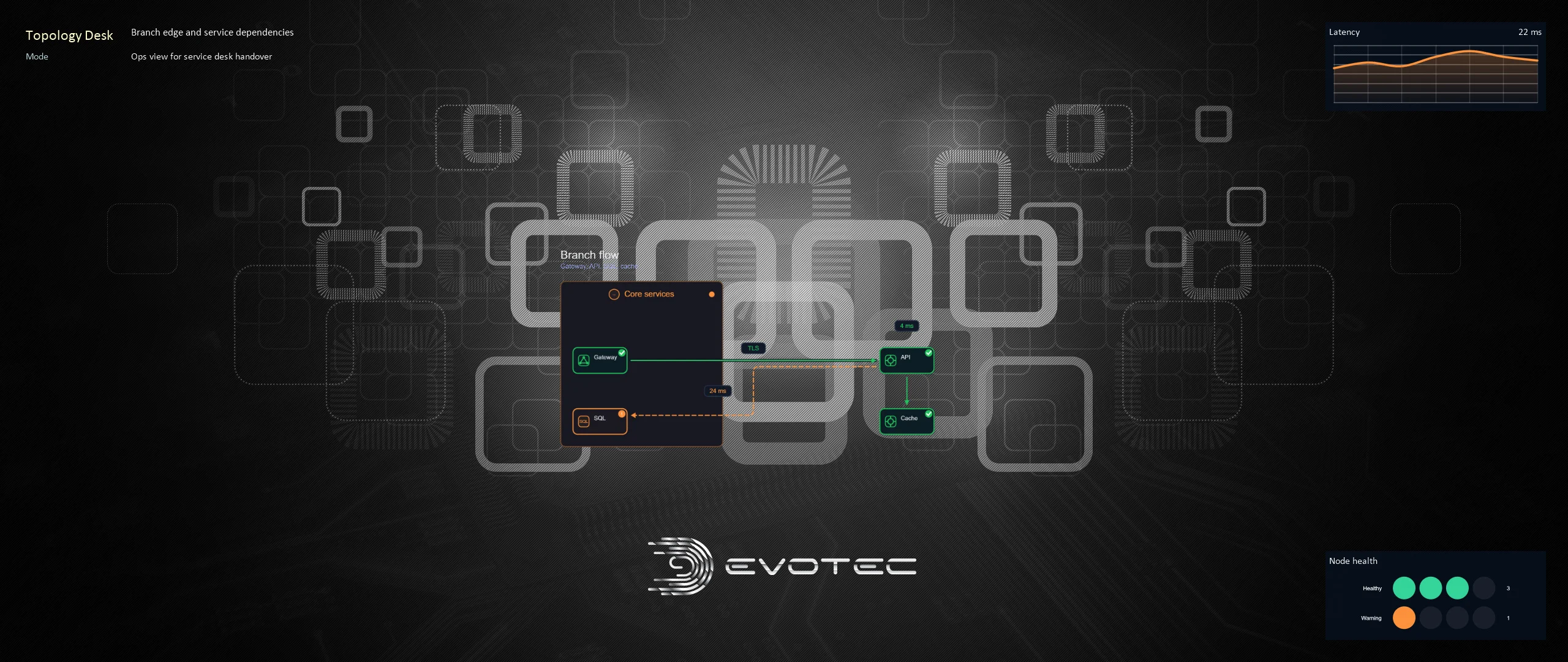
ChartForgeX owns the reusable charts, topology, and composition. PowerBGInfo owns the Windows-specific work: values, placement, deployment targets, caching, and refresh. ImagePlayground exposes the broader image tooling through PowerShell. Keeping those jobs separate means wallpaper behavior does not leak into a general rendering library.
What changed since the original PowerBGInfo article
The earlier PowerBGInfo introduction shows where the project started. Since then I have added a richer value model, multi-monitor placement, JSON configuration, several deployment targets, slideshow handling, charts, topology, and visual-canvas layouts.
The original idea has not changed. When someone looks at a managed Windows screen, the first pieces of support context should already be there.
Documentation, API, and examples
The PowerBGInfo project hub links the current material:
- documentation covers deployment, refresh, layouts, and troubleshooting
- PowerShell API lists the current commands and parameter sets
- examples link to maintained deployment, chart, topology, and visual-canvas workflows
- GitHub remains the source and issue tracker
My recommendation is to start with file output, check it at the monitor resolutions used in the fleet, and only then apply it in the intended user or system context. The background may be decorative to Windows, but once it carries support information it becomes part of the deployed configuration.