blog
Granting “Logon as a batch job” permission for Task Scheduler to work
Running Tasks with Task Scheduler is one of most common scenarios in Administrators life. By default you can run your Task as SYSTEM which is OK solution if you don't have to access any resources over network. However if you do and you want to run it as specially created domain account for that you need to setup ‘Logon as Batch Job' on Windows. This privilege is granted through the Local or Domain Security Policy. If you don't do that and you try to run the task anyway you will get Event ID 4625 in Security log.
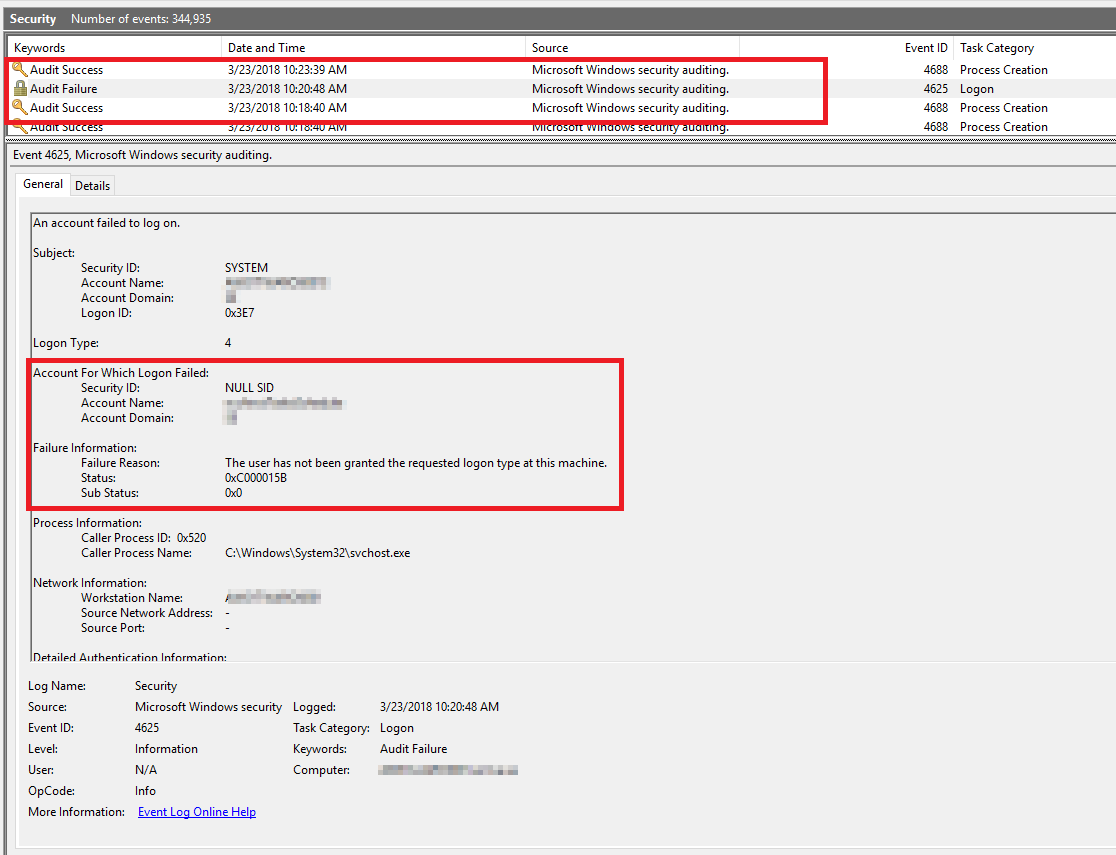
And in Task Scheduler history
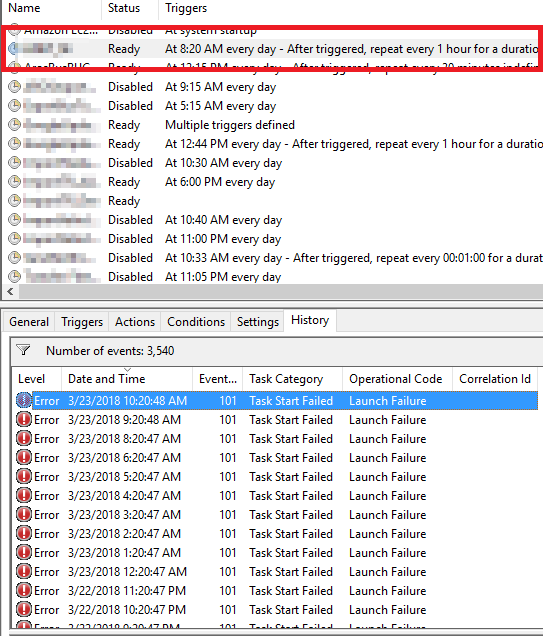
💡 Solution – Local Security Policy
To do this using the Local Security Policy, follow these steps.
- In the Control Panel, open Administrative Tools, then Local Security Policy.
- Beneath Security Settings, open Local Policies and highlight User Rights Assignment.
- Locate Log on as a batch job. Open the properties and add any users that need this right.
- When finished, save your changes and close the Local Security Settings window.
Your changes should take effect immediately.