

blog
Quickly test multiple computers availability
Sometimes you do not need a full monitoring system or a polished dashboard. You just need a quick answer to a practical question:
"Are these servers up, resolving in DNS, and listening on the port I care about?"
That is where a small PowerShell helper script can save a lot of time.
The scenario
This example is aimed at groups of similarly named machines, such as:
ash000145ash000146ash000147ash000148
The goal is to test three simple things:
- does DNS resolve the name
- does the machine respond to ping
- does the RDP port respond
Example script
$ServerName = "ash000"
$StartNumber = 145
$EndNumber = 148
$RdpPort = 3389

function Test-ComputerAvailability {
    param (
        [string[]] $ComputerName,
        [int] $Port = 3389
    )

    foreach ($CurrentComputer in $ComputerName) {
        $DnsEntry = $false
        $PingResponse = $false
        $TcpPortOpen = $false

        try {
            [void] [System.Net.Dns]::GetHostEntry($CurrentComputer)
            $DnsEntry = $true
        } catch {
        }

        try {
            $PingResponse = Test-Connection -ComputerName $CurrentComputer -Quiet -Count 1 -ErrorAction Stop
        } catch {
        }

        try {
            $Client = [System.Net.Sockets.TcpClient]::new()
            $Client.Connect($CurrentComputer, $Port)
            $TcpPortOpen = $Client.Connected
            $Client.Close()
        } catch {
        }

        [pscustomobject] @{
            Name         = $CurrentComputer
            DNSEntry     = $DnsEntry
            PingResponse = $PingResponse
            RDPConnection = $TcpPortOpen
        }
    }
}

$Targets = for ($i = $StartNumber; $i -le $EndNumber; $i++) {
    '{0}{1}' -f $ServerName, $i
}

Test-ComputerAvailability -ComputerName $Targets -Port $RdpPort
Why this is useful
This gives you a quick triage view when:
- a deployment affected several servers
- a subnet or site may have a connectivity problem
- you want a basic pre-check before opening RDP sessions manually
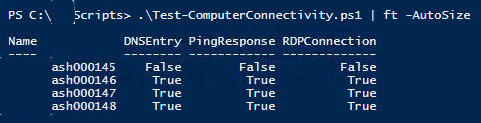
The output is simple, but it is usually enough to spot patterns fast.
Important interpretation note
These checks are helpful, but they are not the same thing:
- DNS success only means the name resolves
- ping success only means ICMP responded
- RDP connection success only means the TCP listener answered on port
3389
So a server can fail ping but still accept RDP, or respond on port 3389 but still reject login later. This is a lightweight connectivity test, not a full service validation.
Practical takeaway
For quick operational troubleshooting, scripts like this are often the sweet spot between doing everything by hand and overengineering the problem. Keep the output simple, make the target range easy to change, and you have a reusable admin tool that earns its place very quickly.