

blog
Windows Server – SNMP Service Tabs missing
Setting up SNMP monitoring on a Windows Server usually means opening the SNMP Service properties and filling in the familiar Agent, Traps, and Security tabs. When those tabs are missing, the service looks installed, but the management part of the feature is not really there yet.
What the problem looks like
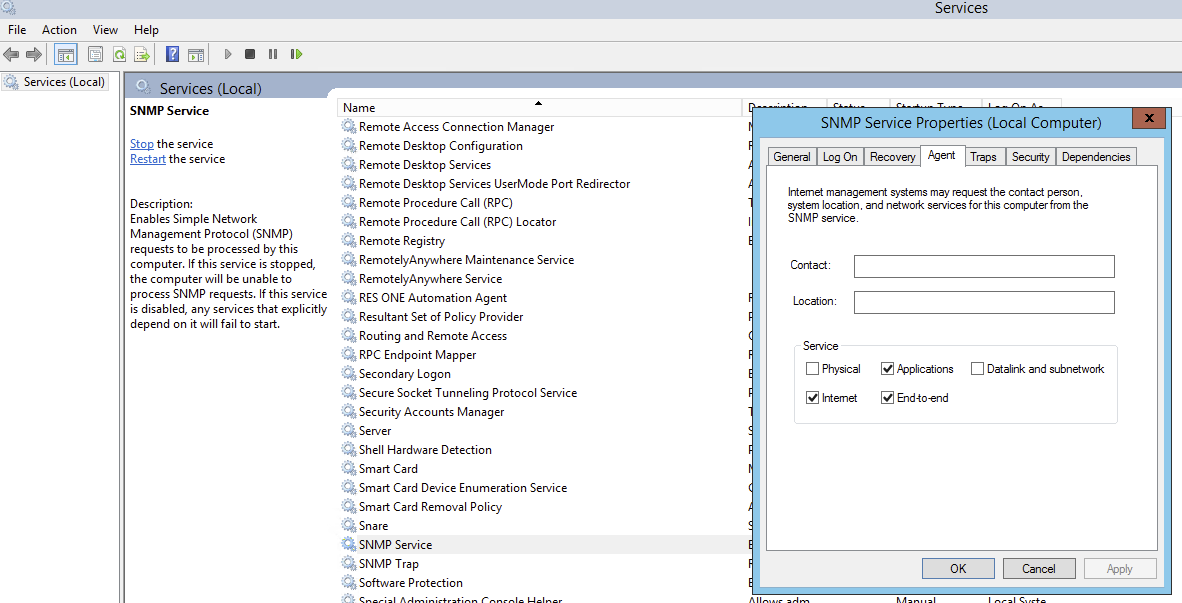
Normally, the SNMP Service properties should expose the tabs used for configuring the service:
But sometimes the properties window only shows the generic service tabs:
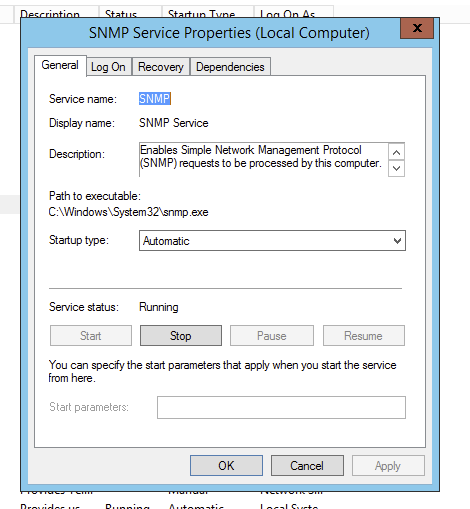
That usually means you have the SNMP service itself, but not the SNMP tools / management component that exposes the full UI.
Fix through Server Manager
The GUI fix is straightforward:
- open Server Manager
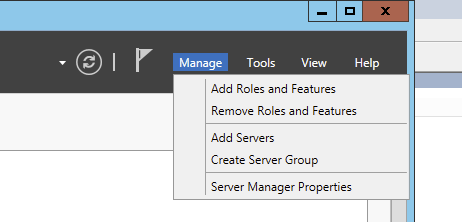
- choose Manage
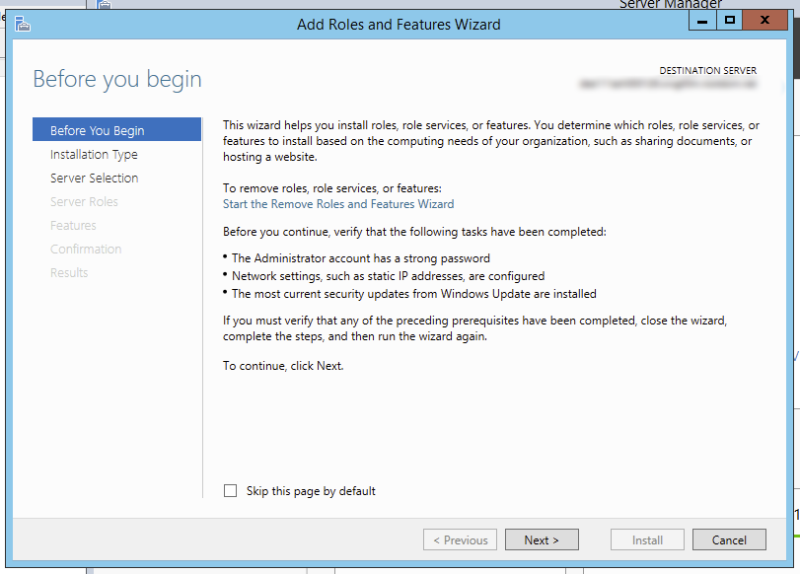
- select Add Roles and Features
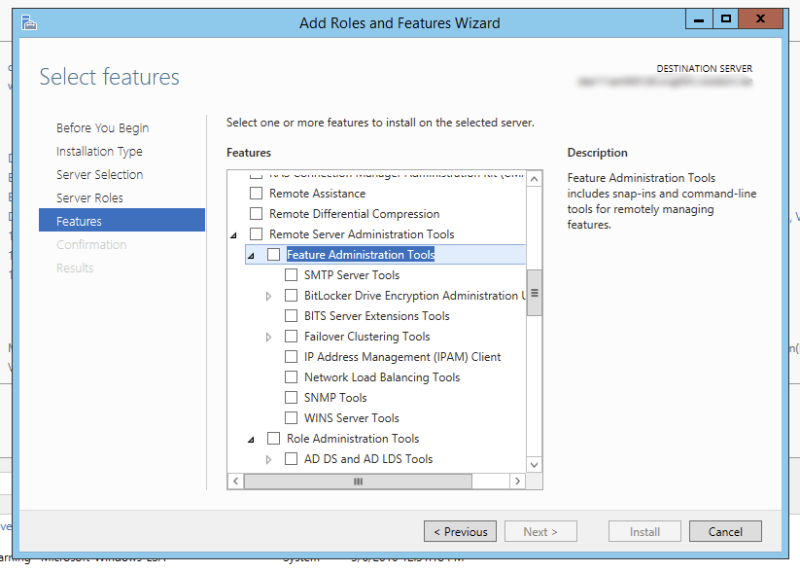
- move through the wizard until you reach Features
- under the relevant administration tools area, make sure SNMP Tools is selected
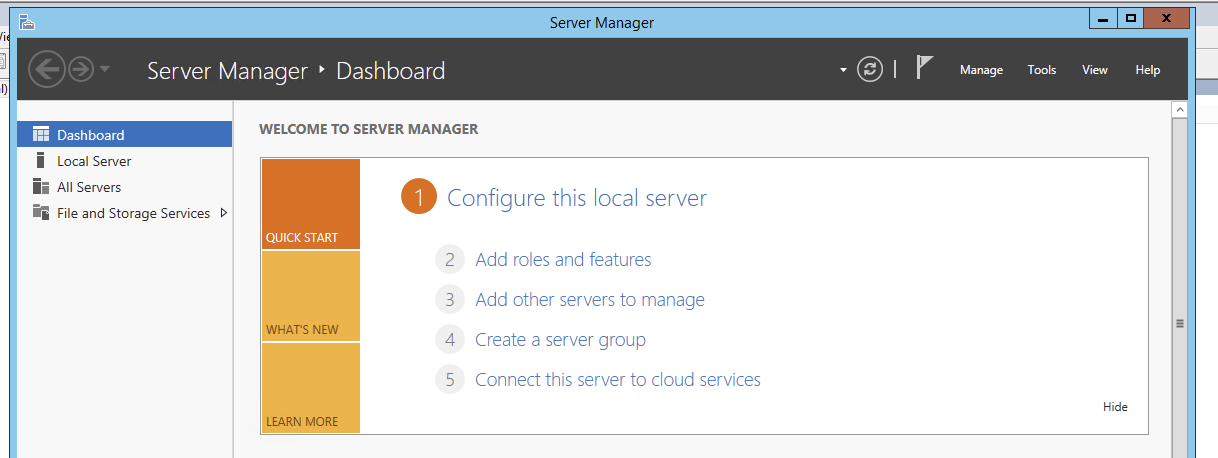
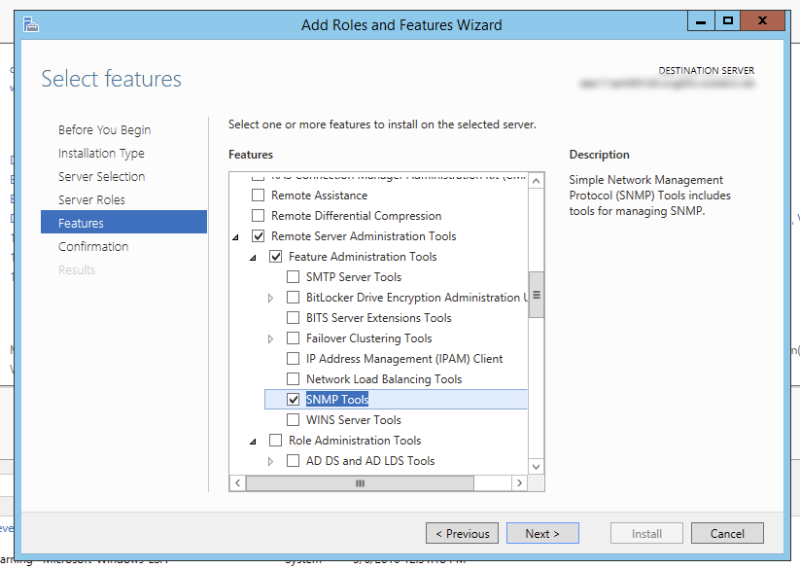
After installation completes, reopen the console and the missing SNMP tabs should be available again.
Command-line option
If you prefer scripting or just want a faster route, enabling the matching component from an elevated shell is often easier.
The original post used:
Dism /online /enable-feature /featurename:Server-RSAT-SNMP /ALL
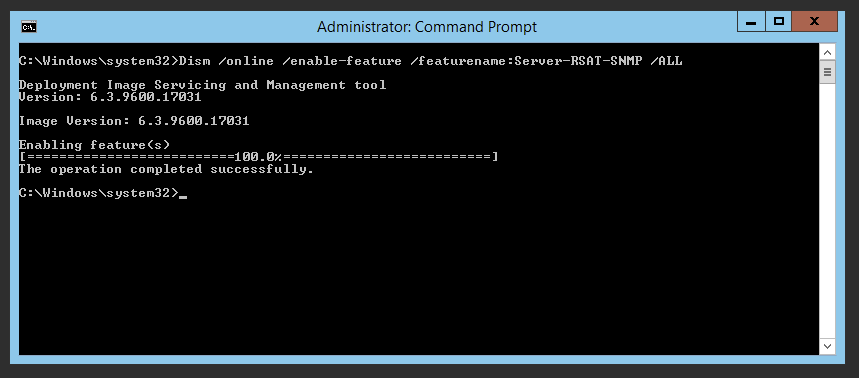
That was a practical shortcut for the older Windows Server build involved here.
Current note
This post is still useful as a legacy Windows Server troubleshooting note, but SNMP should be treated as old infrastructure, not a strategic monitoring direction.
Microsoft has documented SNMP and the WMI SNMP Provider as deprecated, and modern Windows documentation increasingly points toward newer management and monitoring approaches instead. So if you are fixing an older server, this article can still help. But if you are designing something new, it is usually better to treat SNMP as compatibility plumbing rather than the future.